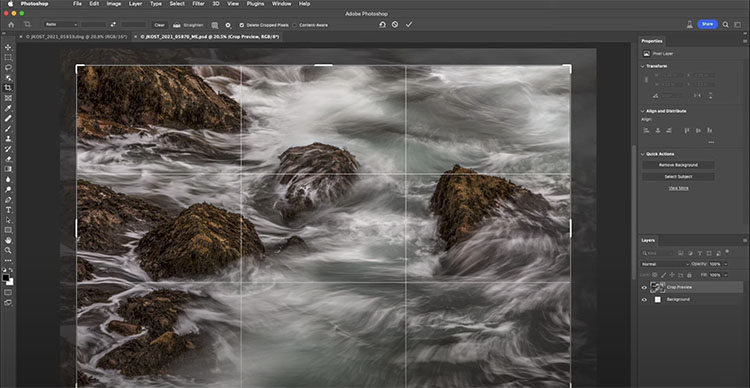
Need To Know Tips & Techniques Cropping Your Photos In Photoshop


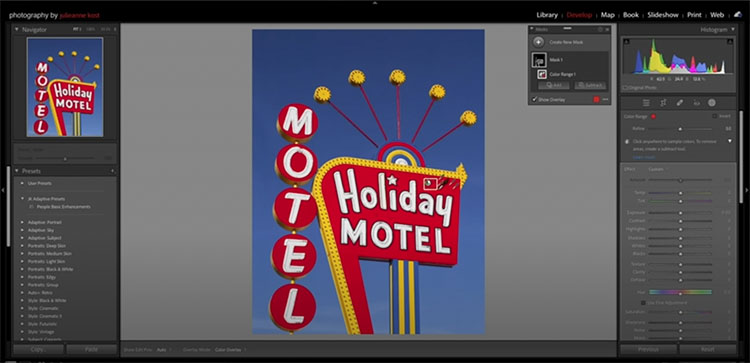
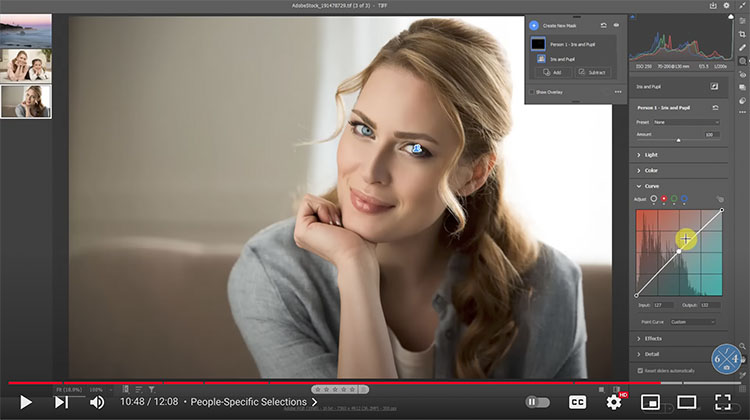
“Adobe added Curves to the masking tool in Adobe Camera Raw, but has yet to add the same feature to Lightroom Classic. Here’s how to cheat and apply Curves using the masking feature in Lightroom Classic.”

.
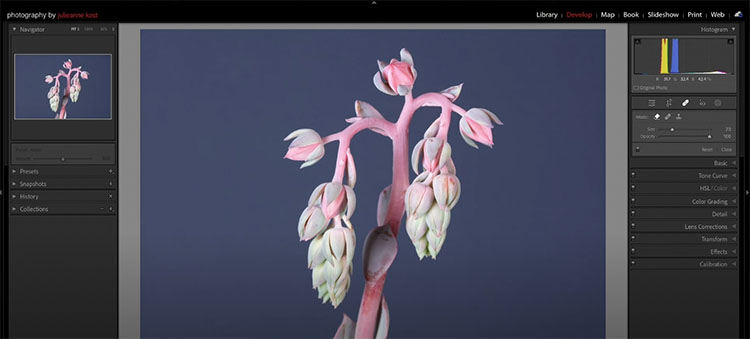
In this video you’ll discover how to use the Clone, Heal, and Content-Aware Remove healing modes in Lightroom Classic to quickly remove dust spots, imperfections and distracting elements in a photograph.
For more check out Julieanne’s blog.
Learn more in my digital photography and digital printing workshops..

.
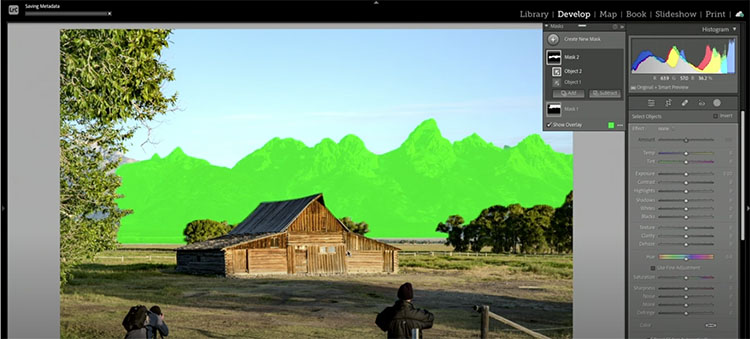
“Discover how to take your photographs to the next level using masking to enhance and adjust selective areas of an image. In this video, Julieanne Kost shares tips, tricks, and techniques for making the most out of Lightroom Classic’s masking tools, including new automated selections based on Adobe Sensei (Select Subject, Object, Sky, People, and Background), manual painting tools (brush, eraser, linear and radial gradients), and Range Masking (color, luminance, and depth). She also walks through Auto Sync, Copy/Paste, and using Adaptive Presets – all guaranteed to make your workflow more efficient.”
Learn more from Julieanne Kost here.
Learn more in my digital photography and digital printing workshops.

.
See the top new features in Camera Raw & Photoshop 2023.
Find out more from Colin Smith at Photoshop Cafe.
Learn more in my digital photography and digital printing workshops.


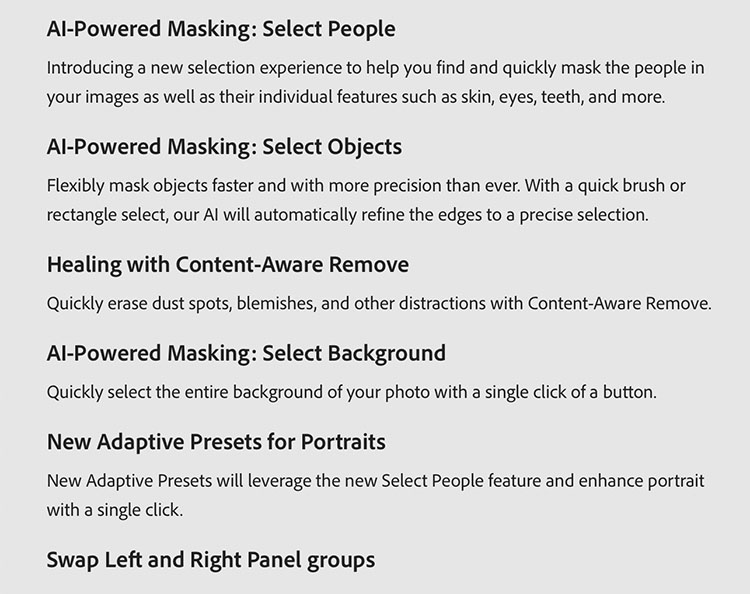
They’re here! The additions of content-aware retouching plus masking for Curves in Camera Raw and Lightroom are game changers. Stay tuned for more details.
Find out more at Adobe.
Learn more in my digital photography and digital printing workshops.


.
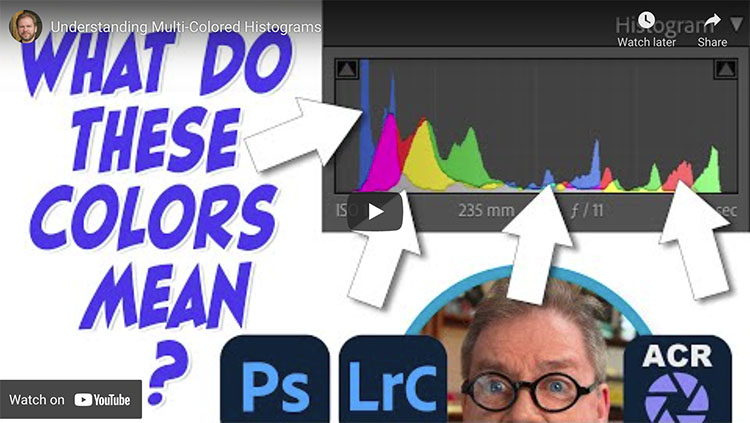
The colors that appear in Lightroom, ACR, and Photoshop’s histograms can be useful to detect color casts, determine if detail is being lost, and know more about the colors that make up an image. I start by blindly interpreting a bunch of histograms while I cannot see the image that it represents (but you can). I then explain how basic color works and how that relates to the colors that appear in the histogram.
Check out more of Ben Wilmore’s Digital Mastery here.
Learn more in my digital photography and digital printing workshops.
Find out more from Colin Smith at Photoshop Cafe.
Learn more in my digital photography and digital printing workshops.

Did you ever wish you could get more out of a slider in Lightroom (or Adobe Camera Raw)?
Here’s how to go beyond the maximum amount a slider allows.
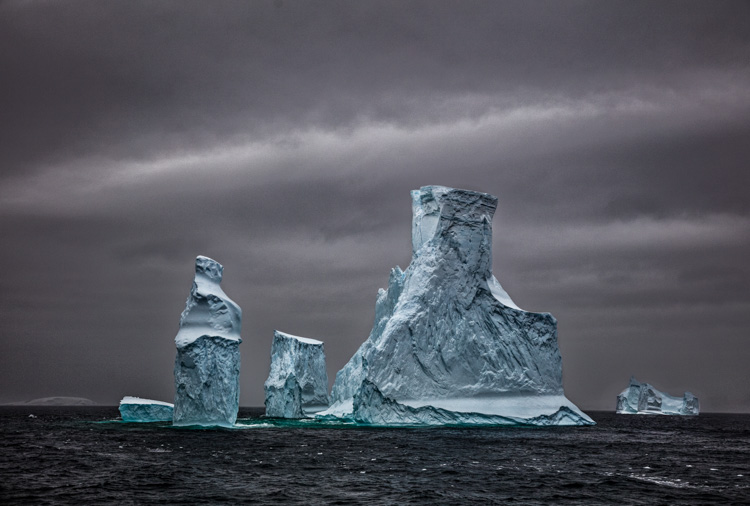
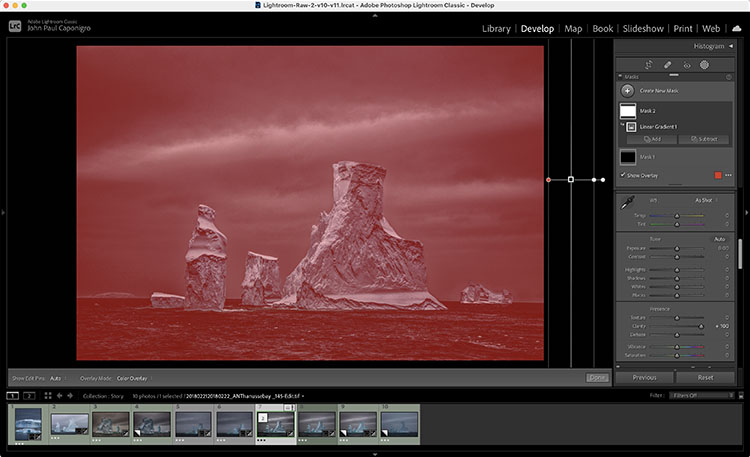
Use Create New Mask and make a Gradient or Brush … outside the image area. Click the gradient outside the border and drag away from it. Or, click the brush outside the border and check the Invert box. Then use one or more sliders to go beyond their maximums.
You can do this as many times as you like. 150%, 200%, 300%, 400%, 500% … there’s no limit.
This is faster and more uniform (less uneven) than brushing the entire frame.
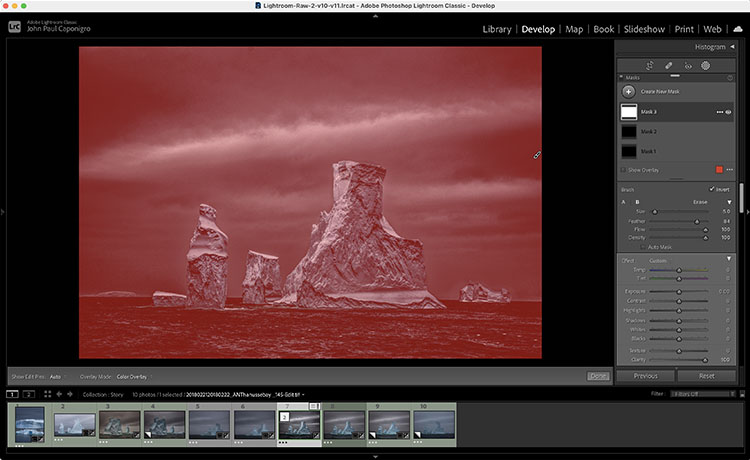
This only works with the sliders available in the Masking panel.
If you want to do this with sliders that aren’t in the Masking panel, open the file in Photoshop and apply the Camera Raw filter.
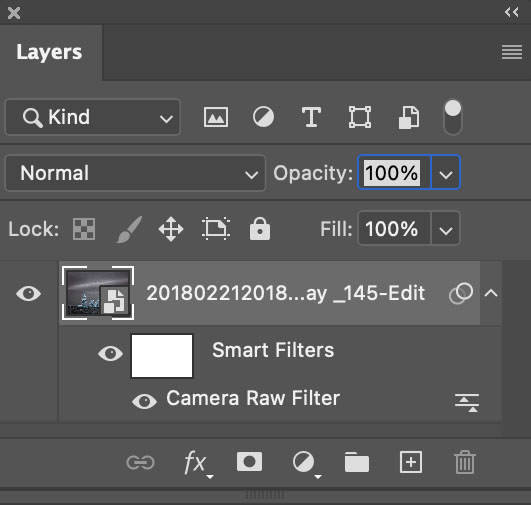
But wait, there’s more. You can apply this principle selectively too. If you’re in Lightroom or Camera Raw use a brush to add more. If you’re in Photoshop, use a Camera Raw smart filter with a mask. There are no limits.
Find more resources on Raw processing here.
Learn more in my digital photography workshops.