“Check out the amazing new feature that changes the lighting in an image. Colin Smith shows you how to use this lighting tool on a flat image as well as how to match dramatic lighting in a composite.”
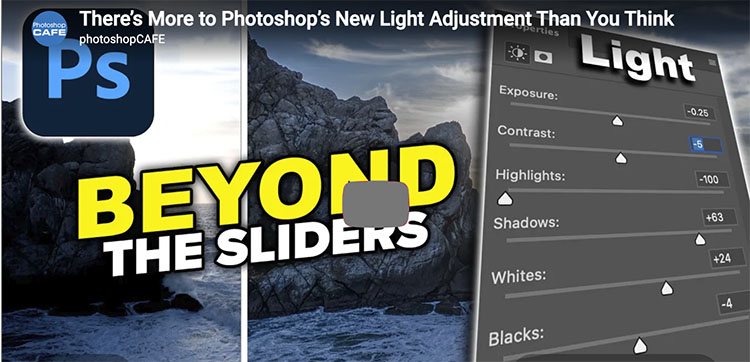
Photoshop’s new Light adjustment brings Exposure, Contrast, Highlights, Shadows, Whites and Blacks directly into an adjustment layer. But there’s more to it than just moving six sliders. In this deep dive, Colin Smith from PhotoshopCAFE shows how to use the new Light adjustment to recover highlight and shadow detail, control dynamic range, stack adjustments, use masks for targeted edits, and get more control than you might expect. I’ll also explain why Shadows and Highlights temporarily disappear when you edit layers underneath the Light adjustment.
Second, Jesus Ramirez shows you …
How to use the Light adjustment layer in Photoshop
How to bring back the Brightness/Contrast adjustment layer
How to read a histogram to compare Brightness and Exposure
How to stop the Light adjustment layer from pausing
How to use clipping masks and layer masks with a Light adjustment layer
How to use Blend If on an adjustment layer
How to compare Photoshop’s Light sliders to Lightroom with a Difference blend
“Photoshop can now rotate any object in a photo and fill in what the camera never captured! You have to see this!”
“Rotate object allows us to turn a photo into a posable 3D object within Photoshop beta. Colin Smith shows you how to use one of the most powerful compositing tools to ever come to Photoshop.”
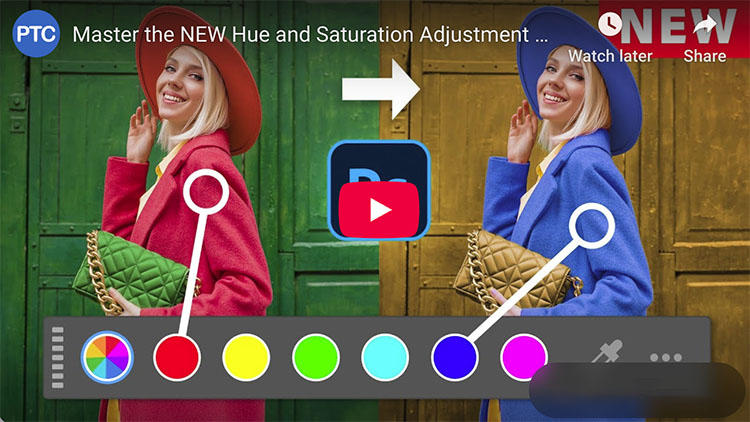
“Learn how to use Photoshop’s NEW Hue/Saturation ‘Invert’ button to quickly flip color selections and isolate colors faster.” … from the guy who suggested the feature.
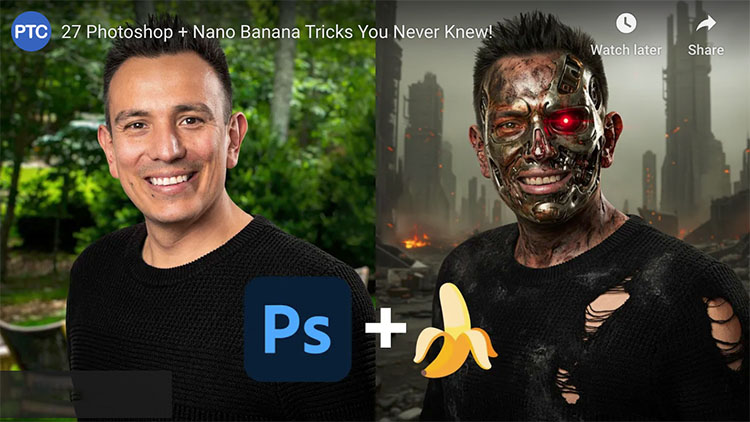
“Master the endless possibilities with new partner models in Adobe Photoshop! Learn how to use Nano Banana in Photoshop to preview outfits, change camera angles, create realistic mockups, and a whole lot more! This Photoshop tutorial shares unique techniques to leverage generative AI and Adobe AI to achieve professional results quickly. I’m excited to show you these next-level tricks!”
00:00 – Introduction
00:29 – Change the Color of an Object
03:13 – Remove Braces
04:10 – How Nano Banana Works
04:46 – Change Facial Expressions
06:16 – Generative Fill Custom Keyboard Shortcut
06:36 – Change Facial Expression of a Dog
07:44 – Change Body Poses
08:15 – Change Text
08:42 – Mockup a Logo
09:21 – Seamless Patterns
10:30 – Create Text Effects
10:57 – Day To Night
11:23 – Summer to Winter
11:38 – Composite items into a Scene
12:29 – Try Clothes On
13:20 – Photo Restoration and Animation
14:41 – Annotate Images
15:27 – On-Image Prompting
16:25 – Change Camera Angles
17:07 – Make Someone Look Like ’80s Model
17:21 – Generate a Professional Portrait
17:29 – Flood The Scene
17:42 – Turn Someone into the Terminator
17:55 – Zoom Out an Image (Outpainting)
18:16 – Replace the Background
18:28 – Place Someone into the Hollywood Sign
18:39 – Place Someone in The Show Friends
18:57 – Turn a Photo into a comic book drawing
Photoshop just released a powerful AI tool that lets you blend objects into any scene with 1 click. But if you rely only on the default result, you’re missing out on what makes this feature truly shine.
This step-by-step tutorial goes beyond the basics. You’ll learn how to combine classic Photoshop techniques with the Harmonize feature to achieve the best possible results. I will also show you a trick to bypass the 1024×1024 resolution limit!
00:00 – Intro
00:43 – How The Harmonize Button Works
03:36 – Working with People
04:20 – Compositing with Varying Levels of Transparency
07:06 – Composite Small Accessories to a Photo
10:10 – Head Swaps with Harmonize
12:10 – Compositing with a Transparent Object
15:05 – Get Around The Low Resolution Output Limit
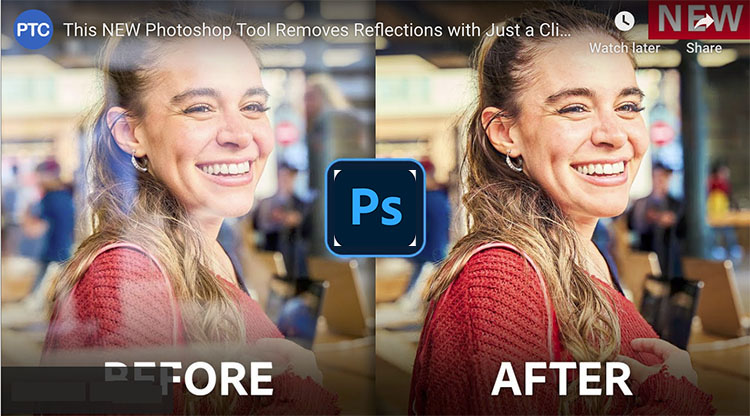
“Photoshop just introduced a powerful new AI feature that lets you remove reflections from your photos! You can also extract the reflection and add it to a new image! In this video, I’ll walk you through how to:
Access the Remove Reflections feature
Use the Reflection Feature for best results
Clean up leftover reflections using Photoshop layers
Extract a realistic reflection from your photo and add it to a new image for creative compositing
.
This tool opens up exciting possibilities, whether you’re retouching or looking to add believable reflections to your edits!”
Photoshop’s go-to color adjustment tool Hue/Saturation has been updated!
“Learn everything you need to know about the new Hue/Saturation Layer in the latest Photoshop Beta.”
00:00 – Introduction to the new Hue Saturation Adjustment
02:43 – Example 01 – Change the Color of a Shirt
07:03 – Example 02 – Colorize Feature
09:10 – Example 03 – Hue/Saturation Flip Trick
11:34 – Image Menu Hue Saturation Adjustment
“Colin Smith explains this new tool and shows the best way to change colors in Photoshop that works on all images.”
00:00 Intro, how to get access
00:39 Big Picture overview of Adjust Color and Hue Saturation
02:48 How to Enable “normal” mode
03:18 6 primary colors
04:28 What is HSL Hue, Saturation, Lightness (luminance), and why does it matter?
05:22 Colorize option and role of Lightness
07:06 Adjusting the Color Range, fine-tune.
“Dive into everything new in Photoshop 2025 and Photoshop Beta 26.1. Discover the upgraded Remove Tool, which instantly clears distractions like wires, cables, and people. Plus, explore the new Generative Workspace for batch generation and the Substance 3D Viewer, which brings 3D object integration back into Photoshop!”