Improved Subject Masking, Bidirectional Linear Gradients, Vectorscope and More in Camera Raw v18.4!
“Join Julieanne Kost for an in-depth look at the latest innovations in Adobe Camera Raw 18.4. Discover how the next-generation Select Subject technology delivers dramatically improved mask accuracy for challenging subjects, explore the new bidirectional Linear Gradient for more flexible local adjustments, learn how the powerful new Vectorscope provides an objective way to evaluate and refine color, and more! Along the way, Julieanne demonstrates advanced masking refinements, improved background selections, enhanced Lens Blur accuracy, natural skin-tone correction workflows, Generative AI-powered removal of transparent areas, HDR workflow improvements, and significant performance gains for Denoise on Apple Silicon systems. Whether you’re a photographer, retoucher, or creative professional, this comprehensive overview will help you take full advantage of Camera Raw 18.4’s latest tools and AI-powered enhancements to achieve faster, more precise, and more creative results.”

For more check out Julieanne’s blog.

Learn more in my digital photography and digital printing workshops.
Great New Features in Lightroom & ACR 2024

Colin Smith (Photoshop Cafe) shows the new features in Lightroom & Adobe Camera Raw 16.3 – Generative Remove, Lens Blur, and Content Credentials. Pay particular attention to Content Credentials (at the end of his ACR 16.3 video), a new initiative designed to inform viewers about how files have been enhanced, including additions with AI.

Find out more from Colin Smith at Photoshop Cafe.

Learn more in my digital photography and digital printing workshops.
How To Get Perfect Results With Adobe Lightroom & ACR’s Lens Blur

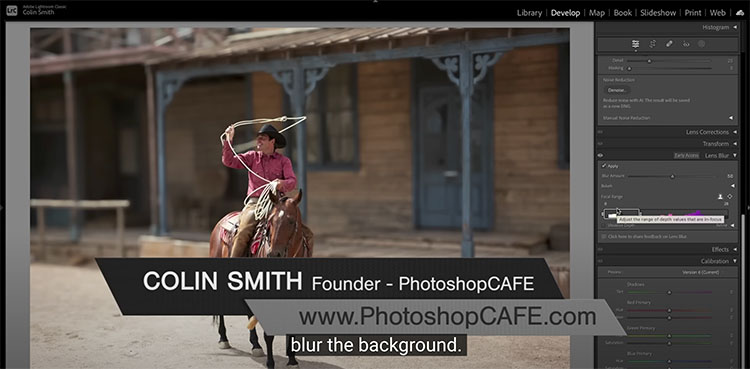
Colin Smith shows how to use the new Lens Blur in Lightroom and Adobe Camera RAW, including refining the blur and adding bokeh.

00:00 Intro
00:15 How to apply Lens Blur in Lightroom and Camera RAW
00:50 Lens Blur Settings
01:16 Focal Range, change the focus distance
02:06 Visualize Depth
02:46 Changing Blur area
03:43 Refining the selection, manually fixing the blur area
07:03 Multiple blur planes. matching the background
07:46 Final Settings for the most realism
08:17 Setting the Bokeh
08:58 The Different types of Bokeh

View more from Colin Smith here.
Learn more in my digital photography and digital printing workshops.
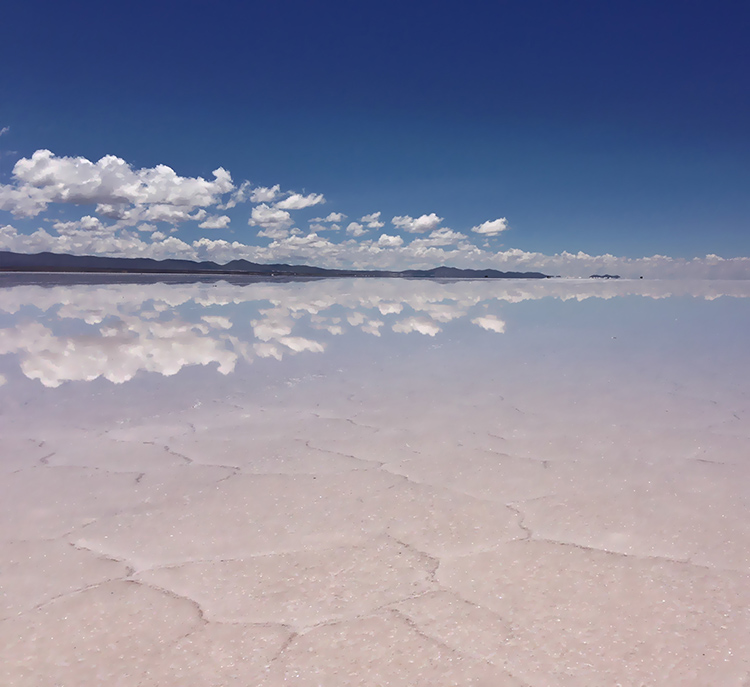
A Grand Overview Of Photoshop’s Blur Filters

Photoshop Blur Filters

There are many reasons to explore blur in your images; remove distractions, direct attention, enhance space, modify mood, and add interesting visual artifacts are six among many. Blur can be controlled at the point of capture and in post-processing. Thoroughly understanding your post-processing options will help you make choices about when and how to control blur in your images before, during, and after exposure.

When it comes to post-processing blur, you’ve got options! Photoshop currently offers fourteen filters; Field Blur, Iris Blur, Tilt-Shift, Average, Blur, Blur More, Box Blur, Gaussian Blur, Lens Blur, Motion Blur, Radial Blur, Shape Blur, Smart Blur, Surface Blur - in order of appearance in the Filter: Blur drop-down menu.

At first glance, the list is overwhelming. Where do you start? Get started with this quick survey of available options.


Insights Members can login to read the full article.
Email:
or Sign up