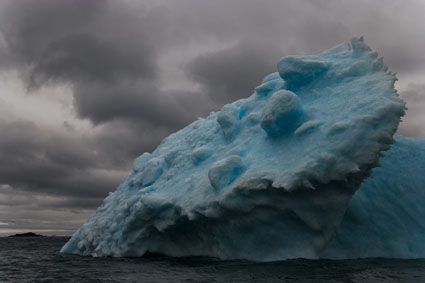
No High Pass sharpening

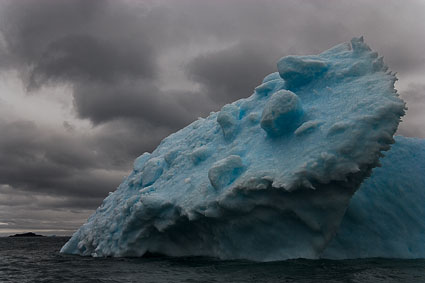
Low Radius High Pass sharpening
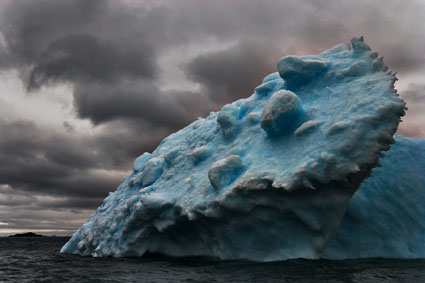
High Radius High Pass sharpening

There are three methods of sharpening in Photoshop that we should all be aware of: Luminance, Edge and High Pass sharpening. In this order, the three methods become progressively more complex and go to greater lengths to reduce the accentuation of noise.

To minimize the accentuation of noise, Luminance sharpening requires that the Unsharp Mask’s Threshold value be set precisely. When this isn’t enough, Edge sharpening adds a mask that targets the contours of an image, allowing more aggressive sharpening with fewer side effects. Like Edge sharpening, High Pass sharpening (named for the filter used to produce the effect) targets contours in an image, but it does so without the need for a mask. Unlike Edge sharpening, the contour accentuation it produces is soft, feathered and wide. The effect is substantially different and can be used for many creative effects. High Pass sharpening is very similar to the effects of ACR and Lightroom’s Clarity slider, but it offers more control and more varied effects.

Follow these steps to apply High Pass sharpening:

1.?Duplicate the layer that’s to be sharpened.

2.?Change the mode of the duplicate layer to Overlay. This is what generates the contrast effect.

3.?Filter the duplicate layer and apply the High Pass filter (Filter > Other > High Pass) using a Radius setting that accentuates edge contrast without producing halos. This gives the image layer a gray and linear appearance, concentrating the contrast on contours.

4.?Desaturate the filtered layer. Higher Radius settings leave more residual color, and you can get considerable saturation shifts.

5.?Double-click the layer and use the Blend If sliders to remove the effect from near black and/or near white values. Start by moving the This Layer highlight slider to 235, holding the Option/Alt key and splitting the left side of the slider to 215; finish by moving the This Layer shadow slider to 25, and holding the Option/Alt key, split the right half of the slider to 45.

6.?Optionally, reduce the layer’s opacity and/or mask it as desired.

Read more on Digital Photo Pro.

Find more on sharpening in my digital photography ebooks.

Learn more in my digital printing and digital photography workshops.


Unfortunately due to the large amount of spam we receive we ask that you are a registered user and are logged in to post a comment.

If you are not already a registered user, you can register by clicking here.

If you are a registered user, you can log in here.

Thank you.

Subscribe

Get the RSS Feed  

Subscribe by Email


    Categories

  • Archives

  • Blogroll

    Topics & Friends