Julieanne Kost – LR4 Beta – Modifying Book Layouts
Julieanne Kost demonstrates how to customize your book layouts in LR4 Beta.
View more Lightroom videos here.
??Learn more in my digital photography and digital printing workshops here.?


Julieanne Kost demonstrates how to customize your book layouts in LR4 Beta.
View more Lightroom videos here.
??Learn more in my digital photography and digital printing workshops here.?
Julieanne Kost provides an overview of the new book module in LR4 Beta.
View more Lightroom videos here.
??Learn more in my digital photography and digital printing workshops here.?
Julieanne Kost discusses the new map module in LR4 Beta.
View more Lightroom videos here.
??Learn more in my digital photography and digital printing workshops here.?
Julieanne Kost demonstrates how the new LR4 Beta works with video.
View more Lightroom videos here.?
??Learn more in my digital photography and digital printing workshops here.?
Julieanne Kost discusses new features in LR4 Beta, including softproofing and the DNG enhancements.
View more Lightroom videos here.?
??Learn more in my digital photography and digital printing workshops here.?
Julieanne Kost covers new features in LR4’s Develop Module and Basic Panel.
View more Lightroom videos here.?
??Learn more in my digital photography and digital printing workshops here.?
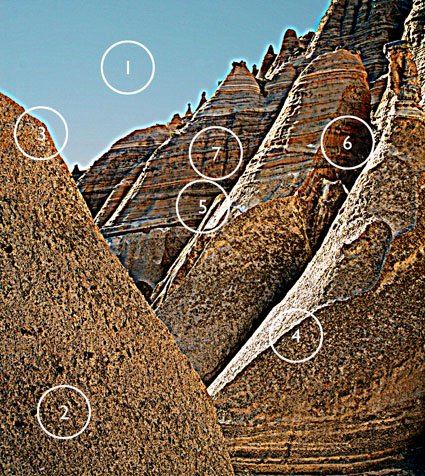
If you know what to look for, you’ll know what path to choose and how far down it to go.
Identifying and developing a sensitivity for the artifacts digital sharpening produces will help you choose a sharpening method and what settings to use during any stage of your sharpening workflow.
You can easily see the artifacts digital sharpening produces by overdoing it.
Here are the seven most common digital sharpening artifacts.
1 Noise
2 Exaggerated Texture
3 Visible Light Halos
4 Visible Dark Lines
5 Loss of Highlight Detail
6 Loss of Shadow Detail
7 Increased Saturation
Each of these artifacts can be reduced in one or more ways.
Here’s a list of options.
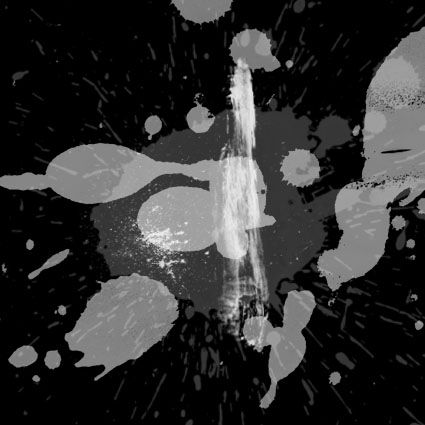
Photoshop Free Brushes offers high quality Photoshop brushes.
They offer so many free brushes! Where do you start?
Try these six collections.
1 Spatter Brushes
2 Gore Brushes
3 Vintage Paper Brushes
4 Water Brushes
5 Cloud Brushes
6 Star Brushes
Find more free brushes at Naldz Graphics.
Read more on Photoshop painting techniques here.
Learn more in my digital photography and digital printing workshops.
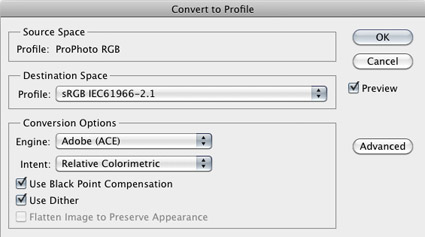
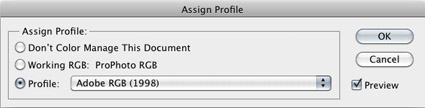
Understanding the difference between assigning and converting to a profile is one of the most conceptually challenging things about color management in digital imaging. It’s counterintuitive to think that by changing numbers the appearance of colors will stay the same or that if you don’t they won’t. But, once you understand why this is happening, how to set up your color management environment and what to do when you encounter color management dialog boxes will become much clearer.
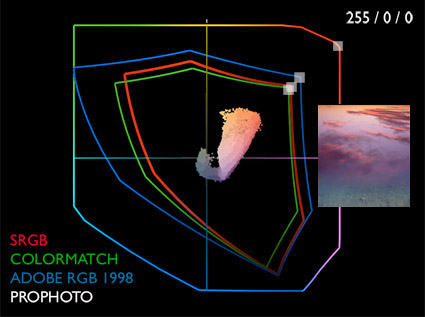
In color management you “change to stay the same”. Why? Take the values for the most saturated red in any RGB color space – 255/0/0. If you graph this in sRGB (a small color space) and ProPhoto RGB (a large color space), you can quickly see that one will produce a much less saturated red than the other. Similarly, all the other numerical combinations produce different appearances in different color spaces too, with the exception of absolutely neutral colors whose values are equal – i.e. 128/128/128. To maintain the appearance of colors when you move them from one color space to another (for instance from a monitor to a printer), you have to change the numbers very precisely, using ICC profiles or maps for each color space and recipes for mixing colors in them.
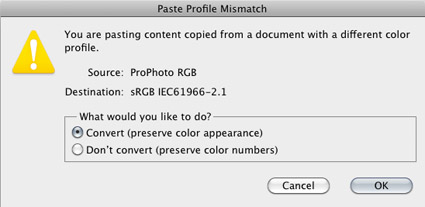
The parenthetical remarks in Photoshop’s Paste Profile Mismatch dialog box say it clearly.
If you Don’t Convert but “preserve color numbers”, the appearance of a file will change, sometimes dramatically, because the numbers in the file have not been converted but a new color profile has been assigned, changing the meaning of the numbers.
If you Convert you “preserve color appearance”; Photoshop does this by referencing the ICC profiles of the source and destination color spaces and precisely changing the numbers in the file so that they produce the closest possible match to the original appearance; only the appearance of very saturated colors will change if you convert a file to a smaller gamut color space.
Note that information converted from sRGB into ProPhoto RGB does not get more saturated. The editing space becomes wider gamut, but the potential for increased saturation can’t be accessed unless values in the file are further enhanced with software. The best way to get the most saturated color possible is to convert the source file (Raw) into ProPhoto RGB.
If you adopt a consistent workflow and always convert into and create new files in the same color space, you’ll encounter these dialog boxes infrequently. You’ll quickly find you won’t have to think about it anymore. And when you do, you’ll simply take appropriate action with confidence when you need to, confident that the images you’re creating are the very best that can be created.
Remember, color management isn’t about ensuring that color doesn’t change, it’s about ensuring it changes as little as possible and is changed as precisely as possible.
Read more on Color Management here.
Learn more in my digital photography and digital printing workshops.
Daughter Doon Arbus introduces this four part video series where Diane Arbus’ photographs are complemented by readings of her writings.
View more photographer’s videos here.