The Art of Proofing

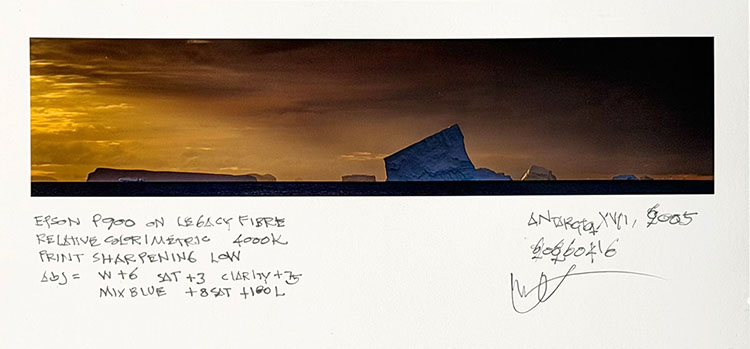
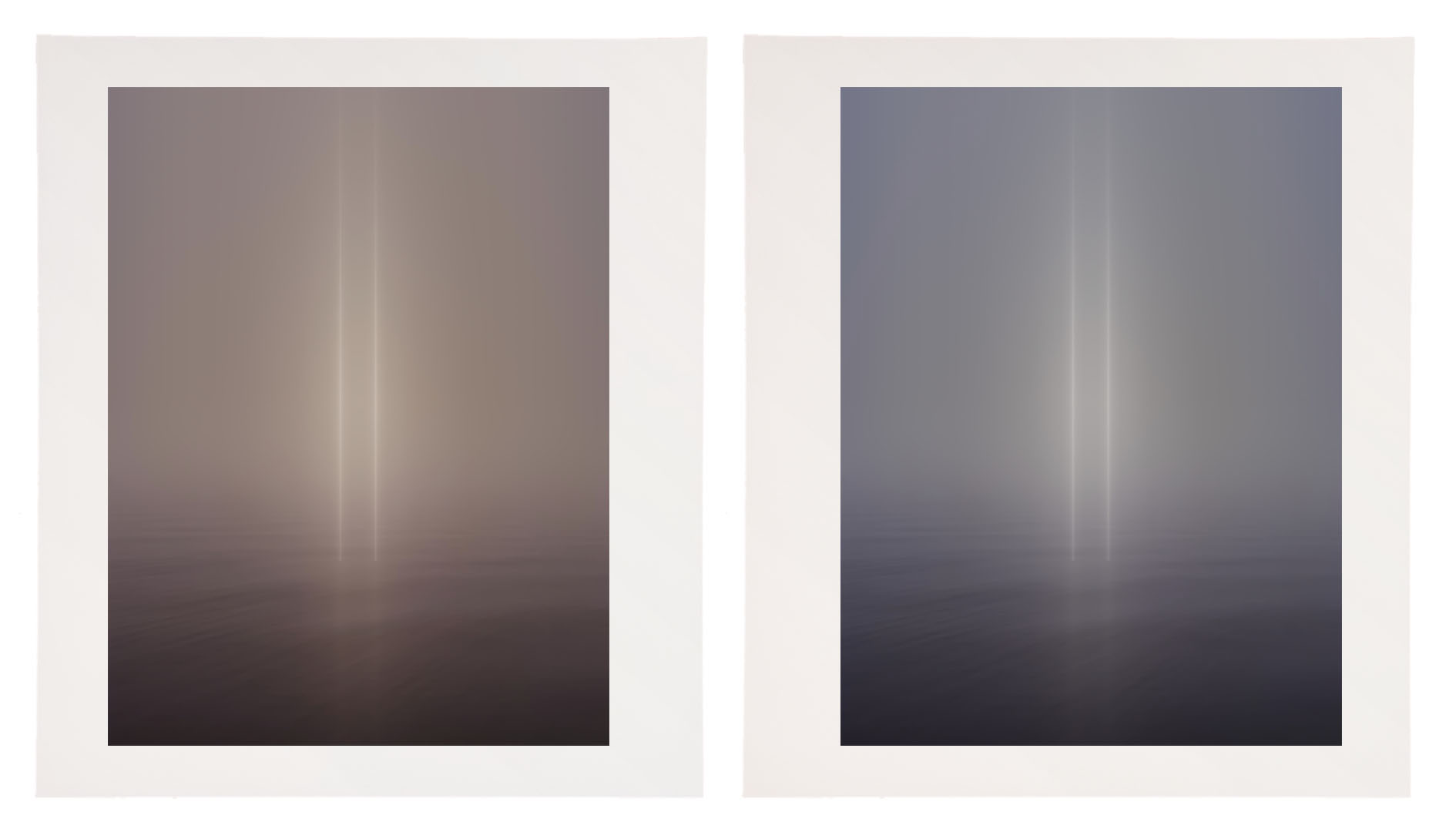
Proofed and printed with an Epson 900 Ultrachrome Ink on Legacy Fibre paper.

Proofing. Some think it’s a lost art. It’s not. Some aren’t aware that they’re doing it. You probably are. If you’re not doing it, it’s highly likely that you can make even better prints than you already are. If you are doing it, you’ll probably find that structuring and refining your proofing process will have many beneficial effects on the print quality you achieve.

What’s proofing? Evaluating an image printed on a particular substrate, making adjustments to the file, reprinting, reevaluating the image on a subsequent print, and repeating until optimum results are achieved.

Proofing is not a Substitute for Color Management

The fact that we still make proofs doesn’t mean color management doesn’t work. It’s amazing it works as well as it does. And, it’s getting better all the time. There are limits. It helps to know the limits. Proofing is not a substitute for good color management practices. Good color management will save you time, materials, money, and improve print quality. There are certain things you cannot solve with proofing if color management is poor. Good color management will get you the best first proof possible. Good color management policies will allow you to trade in subtleties when proofing. Properly implemented, color management will get you 90% of the way there.  To get the last 10%, you need to proof. And, it’s the last 10% that separates good prints from great prints.

The Limits of Softproofing

Softproofing. Simulating the appearance of an image printed on a specific substrate, with a specific printer, driver, output profile, and rendering intent – before it’s printed (View: Proof Setup: Custom). For some, it’s the missing component of color management. Others who have mastered softproofing may have been misled into thinking that a perfect match is attainable. If close is close enough, softproofing is all you’ll need. When it comes to making the very finest prints, some proofing is required, but it has limitations.

Softproofing’s preview of the difference between transmissive and reflective color spaces is not absolutely precise. Even with today’s technological advances, we have a limited ability to display the profound translation between glass or plastic emitting light (transmissive) and paper absorbing light (reflective). While you can match the two closely enough to make very sophisticated predictions about inevitable changes to color, some differences between the two persist, chiefly in brightness (the white and black of the paper and ink).

Softproofing can’t simulate different viewing light temperatures. Profiles are light temperature-specific. With rare exception (ImagePrint RIP), output profiles are created for a standard viewing light of 5000K. Some compensation will be required if prints are to be viewed under a different light temperature. A majority of prints are viewed under very different light temperatures, typically warmer.

Softproofing can’t display the differences between color management routes. Use the same profile using two different color management methods, and you will get slightly different results. Test this by comparing proofs made using Let Printer Determine Colors and proofs made using Let Photoshop Determine Colors.

Softproofing can’t display inaccuracies in profiles. If a profile is inaccurate, the softproof will be inaccurate too. While some profiles are vastly superior to others, I’ve never seen a perfect profile. Even with the finest profiles, you will need to compensate for small inaccuracies by proofing.

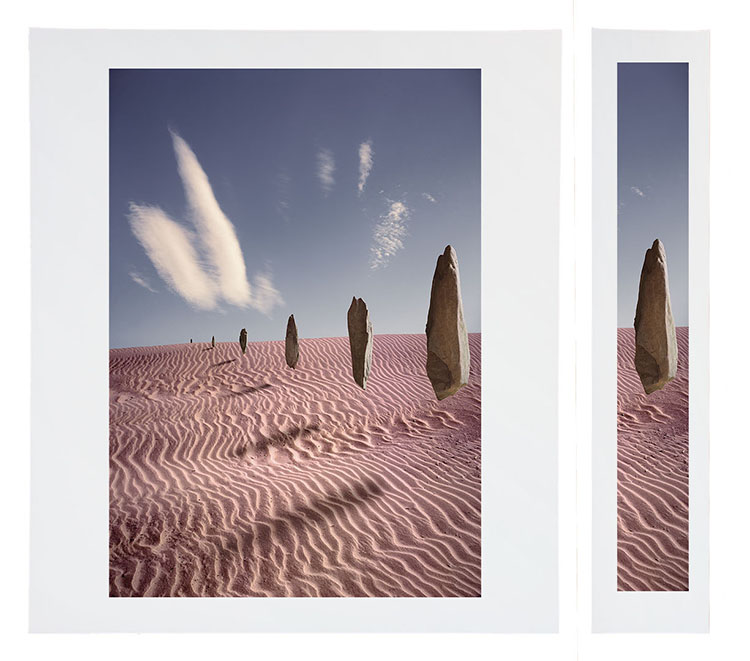
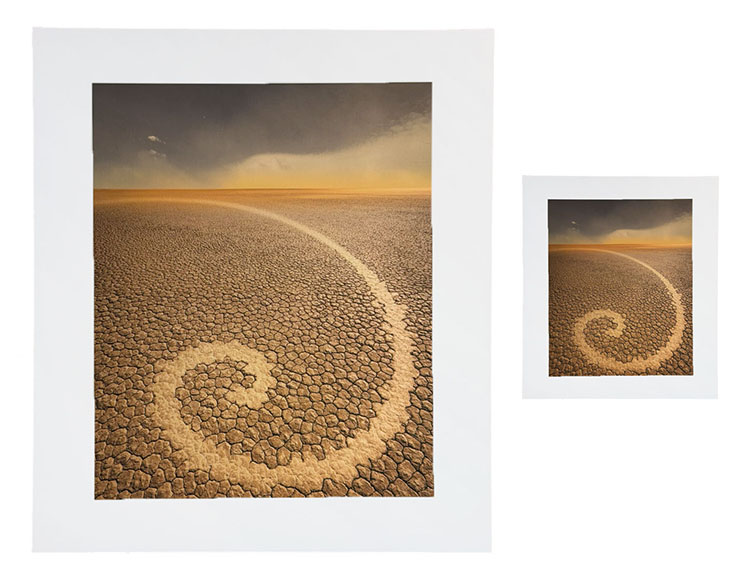
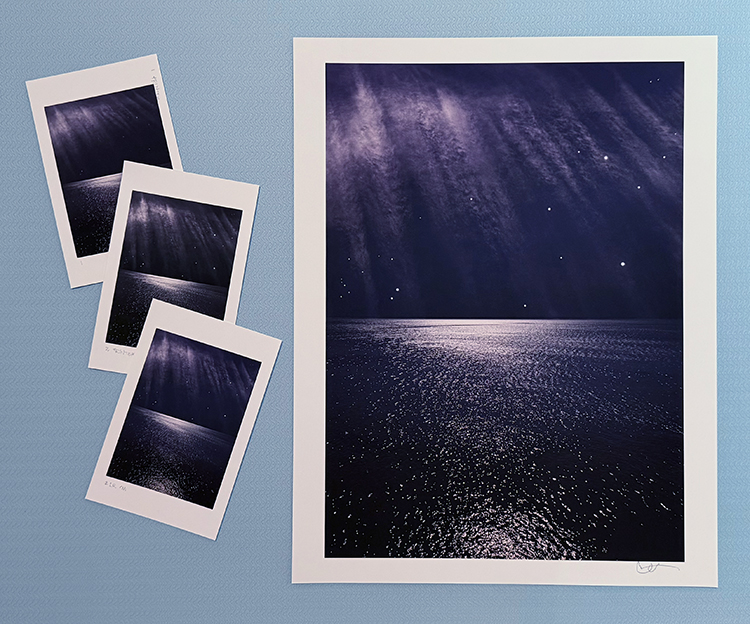
Softproofing can’t fully represent the impact of scale. Monitors have one size. Prints can be made in sizes much smaller or much larger than the monitor used to view a digital image. There are optical effects linked to scale – larger images appear to be lighter and contain less contrast, while smaller prints appear to be darker and contain more contrast.

Softproofing can’t precisely preview detail and sharpness. A monitor’s resolution rarely matches a print’s resolution, so distortions in scale are required in order to assess detail, sharpness, contours, and noise. Softproofing also can’t preview the softening effects of dot gain.

Softproofing can’t show the sensual characteristics of the substrate surface. A monitor has only one surface, but you can print on a marvelous range of substrates from super glossy film to fibrous watercolor paper. Each substrate adds a unique aesthetic dimension to the final print.

In the end, in order to achieve the best quality possible, it’s highly likely that you will want to adjust an image after you see it printed out or proofed. You may need to do this multiple times to achieve optimum results. Here are twelve things that will improve your proofing.

Read More

Printing Tips

Download your free copy now!


The little things can make a big difference, never more so than with printing.


Banding

Colored Micro-Banding

Dark Micro-Banding

Ink Drips or Smears

Ink Spattering and Pooling

Light Micro-Banding

Maintenance Tank is Full

Paper Won’t Feed

Printing Borders Aren’t Equal

Printing Off Paper

Delete & Reload Printer Driver

Locating Printer Utilities

Printer Power Cleaning Cycles

Evaluate Proofs Under Glass

Fragile – Packing & Shipping Prints

Signing Prints


Sign up for Insights for news of new content!

The Art Of Proofing

Download your free copy now!


Get the best print quality possible with these proofing techniques.


Proof – The Art of Proofing
Refine your proofing process to achieve the best print quality efficiently.

Proof – BAT
BAT (bon a tiré) is the final proof print.

Proof – Notes
Take good notes so you can retrace your steps precisely.

Proof – Bracket Proofing
Bracket proof and get one hundred proofs in one.

Proof – Prevent Overinking
Set proper ink limit for a substrate and reduce overinking.

Proof – Correcting for Viewing Light
Compensate for discrepancies in profiles and viewing light temperatures.

Proof – Light Temperature
Light temperature has a significant effect on exposure, calibration, printing, and display.

Proof – Compensate for Scale
Larger images appear lighter than smaller images. It’s an optical effect that affects your prints.

Proof – Full Scale
Proof at full scale to check noise and sharpness.


Sign up for Insights for full access and new content!

How To Preserve Lively Shadows In Your Prints

Constellation_XXVI_Shadows
One of the keys to making a great print is great shadow detail.

Shadow detail is something to be mindful of during exposure, processing, and printing. Curiously, even if you see shadow detail in your file on a calibrated monitor you may not see all of the details in your print. What can you do about this? Many things!

First Check Your Color Management
Before you start editing your files based on your proofs, check your color management system.

Recalibrate Your Monitor
Make sure you’ve calibrated your monitor with hardware. Set a brightness value of 90-100 lux, instead of using the default brightness target of 120 lux. If your monitor is too bright, your prints will look dark overall, especially in your shadows.

Read more on Profiling Your Monitor here.

Give Your Prints Enough Time To Dry
Inkjet prints come out of the printer almost dry, but not quite fully dry. When they’re fully dry, they’ll appear slightly lighter, especially in the shadows where there’s a lot of ink. So before you evaluate prints critically, give them a few minutes to dry. This affects absorbent matte surfaces even more than glossy surfaces.

Find my resource on Outgassing here.

Look At Your Prints In Good Light
Look at your prints in good light. You need the right amount of light (at least 500 lumens), the right color temperature light (5000K is the standard but many viewers prefer the warmer 3600K), and it helps to use full-spectrum light (a CRI of 90 or higher). (Many manufacturers now make full spectrum bulbs, like Solux and Soraa.)

Read more on Controlling Your Environment here.

MediaType_P800

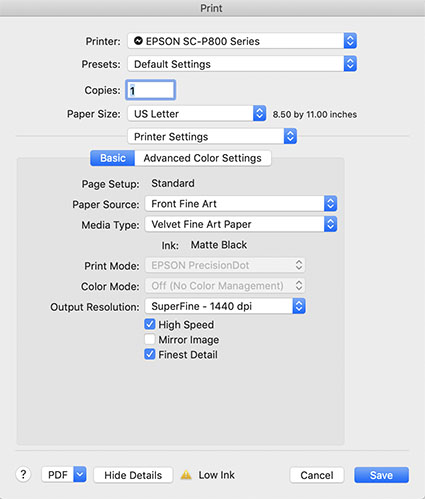
Media Type sets the amount of ink that's used.

Set Your Media Type Correctly
Your printer driver will allow you to set your media type, which controls ink the amount of ink that is sprayed on your paper. Use too much ink and you’ll lose shadow detail. Use too little and your blacks and midtones will appear weak. If you’re using a paper not made by the manufacturer, choose the nearest media type and then adjust its settings with the printer driver’s advanced utilities. (You’ll find this under Advanced Media Control with Epson printers.)

Find my resource on Ink Limit here.

testfile_shadows

Print test patches to determine when maximum black is achieved and when separation is lost.

Print A Target To Determine How Much To Lighten Shadows
Before you adjust your files for printing precisely determine how much you need to lighten your deep shadows by printing a target. While they vary a little, most media settings lose shadow detail around a value of 96% on a grayscale. If you print patches of values between 100% and 90% you’ll see exactly where you lose shadow detail. Printed results will vary slightly with each different media setting, so you’ll need to adjust files slightly differently for different media.

You can download my targets here.

Next Adjust Your File


Insights Members can login to read the full article.
Email:
or Sign up

Watch Me Demo Softproofing & Proofing


Recently on TWIP’s (This Week In Photoshop) The Fix I spoke with Jan Kabili about the power of printing your photographs. Then I demonstrated how to get the best results possible with Softproofing & Proofing practices. Watch this and you’re sure to get better prints in less time with less waste.
Find more useful videos on TWIP’s The Fix here.
Read more with my free Color Management and Printing resources.
View more in my DVD series R/Evolution.
Learn more in my digital photography and digital printing workshops.
Evaluate Proofs Under Glass

proofunderglass

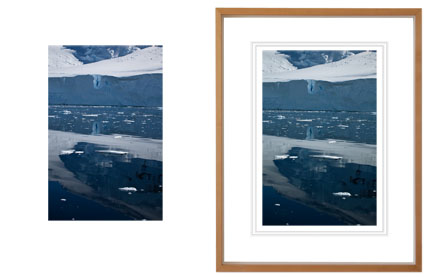
It’s an excellent idea to evaluate final proofs under glass (or plexiglass). This is particularly true if you’re using very thick or low grade glass. Often, when see under glass the print appears ever so slightly darker, lower contrast, and sometimes greener. There’s no ideal glass or plexiglass to evaluate proofs with. Use whatever the print will be viewed under. What you want to be able to do is adjust subsequent proofs so they look ideal in the final viewing state of the print, which is rarely bare.

Read more Printing Tips.
Learn more in my Fine Art Digital Printing Workshops.

Print Proofs To See Undisplayable Colors


You softproof (constrain a monitor with an ICC profile) to see what colors are out of gamut of an ink and paper combination before you print. You proof (print) to see colors out of gamut of the monitor.
What? Yes! Today’s inksets exceed the gamut of of even the widest gamut monitors, in certain colors.
This graph shows ColorMatch (equivalent to most CRTs and LCDs), Adobe RGB 1998 (higher end LCDs), and Epson Ultrachrome HDR Ink on Epson Exhibition Fiber Paper. The new printers with the latest substrates can print more saturated yellows and oranges than even the best monitors can display. And, they can also print more saturated blues and greens than average LCDs can display. Evolution in printers is forcing an evolution in monitors.
Which monitor do I recommend? Check out my previous post here.
Check out my DVD 6 Simple Steps to Good Color Management.
Check out my DVD The Art of Proofing.

See me demonstrate this and more during the Epson Print Academy.
Learn these techniques in my workshops.

Printing – Humidity


Extreme humidity can impact print quality. This is particularly true for but not exclusive to matte papers, which are more absorbent.
We printed for my Annual Exhibit in high humidity. The paper had absorbed a lot of moisture and so there was substantially more dot gain. The prints were coming out substantially darker and we were having trouble maintaining shadow detail. It’s made me want to store all of my paper in a climate controlled environment (using a dehumidifier or air conditioner). Or, climate control my entire studio. Rather than reprofiling for an atmospheric condition that changes unpredictably, we compensated with proofing. We lightened the files selectively before printing. With a little testing, we came up with standard adjustments that could be used on multiple images, with customized shadow masks for individual compositions. It pays to think about the impact of humidity on your printing. Control humidity when you can. Compensate for it when you can’t. You get better prints.
What do you do to compensate for excessive dot gain due to environment or overinking? Comment here.
Check out my Printing downloads here.
Check out my DVD The Art of Proofing here.

Find out about my The Fine Digital Print Workshop Series here.

Printing – Proofing


Proofing is an essential part of making the finest prints possible.
While color management and softproofing get you 90% of the way there, there are all kinds of things you still need to check in hardcopy – materials, ink limit, sharpening to name a few. Every time I print an image, I create a BAT (a final proof) that I archive for future reference. The next time I print the same image the BAT tells me how I got the best results the last time it was printed. That then becomes a starting point for future improvements. Combine advancing technology (printers, ink, substrates) and good color management / proofing practices and you’ll find your print quality will constantly evolve.
Do you proof? What kinds of things do you routinely proof?
Check out my DVD 6 Simple Steps to Good Color Management here.
Check out my DVD The Art of Proofing here.
Check out my Proofing downloads here.
Find out about my digital printing workshop series The Fine Digital Print here.

Printing – Ideal Viewing Distance


Scale changes ideal viewing distance.
To see a 4×5” print you have to get close to it. You can’t see anything but its shape and color from the end of a long hall. To see a 6×10’ print in its entirety you have to stand well away from it. If you stand very close to it, you won’t be able to see the whole image, much less anything else.
The rule of thumb for determining ideal viewing distance is to stand at three times a print’s diagonal dimension. This tends to place the entire image well within a viewer’s field of vision in such a way that overall general detail can be resolved at once, minimizing panning and scanning.
Of course, zooming happens. Both artists and viewers tend to view works of art from many different distances; examining details closely and evaluating a total composition distantly. Viewing distance changes perceived scale. Viewing distance subtly changes the quality of the viewing experience. So viewers tend to compare a variety experiences, dynamically forming a total impression of a work of art.
What do you think the ideal viewing distance for prints is? Comment here!
Check out my Printing downloads here.
Check out my DVD The Art of Proofing here.

Find out about my The Fine Digital Print Workshop Series here.