Using Color to Add Emotional Impact to a Photograph – Julianne Kost
January 31, 2011 | Leave a Comment
Julieanne Kost discusses how the addition of color as well as supporting imagery can help reinforce the mood and message of a composite image that a single photograph may fail to do on it’s own.
Learn more in my DVDs Photoshop Color Tools and Photoshop Color Strategies.
Learn more in my digital photography workshops.
Humanized Technology – Paola Antonelli
January 30, 2011 | Leave a Comment
“Paola Antonelli, MoMA’s curator of Architecture and Design, provides insights into where design is headed both as a creative discipline and as a tool for making sense of the world. In this interview, she talks about the vision behind her upcoming exhibit at MoMA, Talk To Me, “We may not think about it consciously on a day to day basis, but objects around us are always talking to us in both explicit and implicit ways. There’s the obvious directive of a stop sign or a traffic cone, but there’s also the unspoken messaging conveyed via the ATM machine, the alarm clock, and that shiny new iPad. Objects have always been designed with the idea of communicating their use and meaning in mind, and it’s this relationship that MoMA’s Senior Curator of Architecture and Design, Paola Antonelli, seeks to explore in her upcoming exhibition, Talk to Me, slated for summer of 2011.”
Learn more about Talk to Me here.
Sean Kernan Speaks – B&H Events
January 29, 2011 | Leave a Comment
Sean Kernan talks about creativity and his creative life.
Learn more about Sean Kernan here.
Read my conversation with Sean Kernan here.
Read more than 40 of my conversations with photographers here.
The View Project – Tenneson Lecture Tonight in Naples
January 28, 2011 | Leave a Comment
Epson Advanced B&W Photo
January 27, 2011 | Leave a Comment
Black and white printing presents several significant challenges; the ability to produce a neutral color, the ability to maintain that neutral appearance under different light sources (reduced metamerism), the ability to attain graybalance (consistent color throughout the entire tonal scale); the ability to achieve a very dark black (high dmax) without sacrificing shadow detail (low dot gain), and longevity. All of these things are now easily attainable.
Black and white inkjet printing has come of age. In past years, there have been many compelling solutions for making black and white prints with inkjet technology; some have been fraught with problems (third party quadtone ink sets clog easily) and others have been expensive (ColorByte’s ImagePrint RIP). Today, superior quality inkjet printing is both affordable and easily achieved.
Epson has addressed these issues by reformulating their inkset to include not one, not two, but three black inks. You now have a choice of using either Matte Black ink or Photo Black ink with Light Black ink and Light Light Black ink. These inks are used with the other color inks (Cyan, Light Cyan, Magenta, Light Magenta, and Yellow) for a total of eight inks.
Manufacturer’s have reformulated their inksets, adding multiple black inks to highly saturated color inks. To produce the best black and white prints, you want to use all the inks because printing with Black ink only produces a visible dot structure and a lighter black.
Manufacturers have also introduced their own software solutions to separate digital files differently, using more black ink and less color ink. Using more black ink to make a print does several things. It makes it easier to achieve a truly neutral color; it uses more neutral ink and less highly saturated ink. It makes it easier to achieve graybalance (consistent hue throughout the entire tonal scale); graybalance has also been improved by advances in software in both the driver and with improved profiles. It increases the density of the black; dmax ratings for Epson’s UltraChrome II inkset on glossy papers (3.65) now exceeds the dmax of silver gelatin prints (3.2). It reduces metamerism; black ink is the least metameric ink and using a Light Light Black ink makes it possible to carry very subtle highlight detail with gray instead of yellow, the most metameric and fugitive ink. It increases longevity (up to 326 years before visible fading depending on paper type and inkiest); black ink is the least light sensitive so using more of it makes prints last longer.
Epson offers an Advanced B&W Photo feature in their driver software. While you can make a black and white print using either the Epson route or the Photoshop route, for the best graybalance, dmax, and longevity, choose the Epson route and the Advanced B&W Photo feature.
Take these steps.
1 Choose Print. Select Printer Manages Color. Click Print Settings.
2 Under Printer select the printer of your choice.
3 Change Copies & Pages to Print Settings. Select the appropriate or nearest Media Type. Select Advanced B&W Photo under Color. Check Advanced. Choose the highest printer resolution available under Print Quality.
4 Change Print Settings to Color Management and under Tone choose Dark. Optionally, use the color wheel to tint the image.
Navigating The Epson Printer Driver With Photoshop
January 26, 2011 | Leave a Comment
Successfully managing color for digital printing requires that the color in an image file be converted from its device neutral color space to a device specific color space. (Typically this occurs by converting from Adobe RGB 1998 or Pro Photo RGB to a device specific color space defined by an ICC profile characterizing a specific combination of printer, ink, paper, and driver.)
Using Photoshop, you can either convert color in an image before you send it to a printer driver or after you send it to a printer driver.
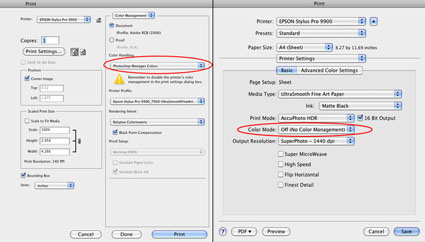
Choose one method of color management – not two. Easily made, a classic mistake is using both. Double color management typically results in a print that is too light and magenta.
The Epson printer driver provides many ways to manage color conversions and get reasonably good color. Two methods offer the best results; the Photoshop route and the Epson route.
How do you do you choose either of these methods?
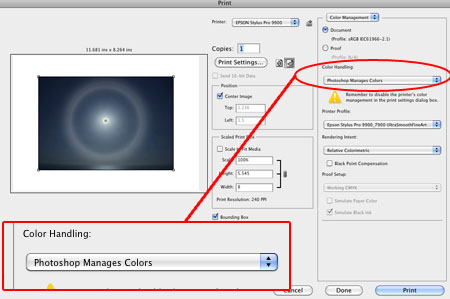
Let Photoshop’s Print window (under Color Handling) guide you – Let Photoshop Determine Colors and Let Printer Determine Colors. (While the principle is the same for most printers, interfaces will vary. Here’s information for the most current Epson interface.)
If you choose Let Photoshop Determine Colors under Color Handling, select a profile for Photoshop to make the conversion with (a paper/ink/driver specific profile not the interface default of Working RGB) under Printer Profile, choose a Rendering Intent of either Relative Colorimetric or Perceptual, and then click Print Settings. In the Print window choose the correct Printer and then change Copies and Pages to Print Settings. Select the correct Media Type, uncheck High Speed, and choose the highest printer resolution available. Finally change Print Settings to Color Management and select Off (No Color Adjustment). The Photoshop route turns Photoshop’s color conversion on and turns the printer’s color conversion off.
The Photoshop route tends to hold slightly more saturation but it’s rendition of neutral colors and gray balance is usually not as good as the Epson route. The Photoshop route is the route to take when you want to use a custom profile. Use it if you are printing with either third party inks or papers which require the use a custom profile to accurately describe the behavior of the alternate media.
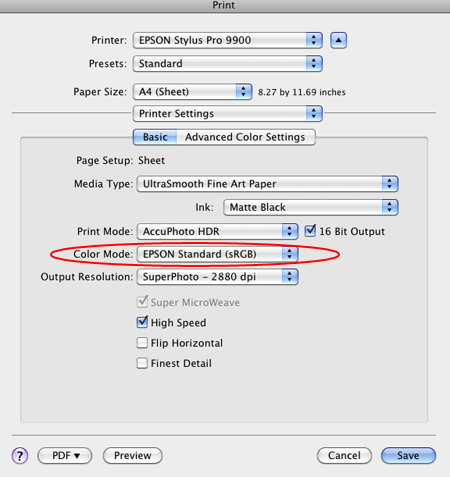
If you choose Let Printer Determine Colors under Color Handling, choose a Rendering Intent of either Relative Colorimetric or Perceptual, and then click Print Settings. In the Print window choose the correct Printer. Change Copies and Pages to Print Settings to select the correct Media Type, uncheck High Speed, and choose the highest printer resolution available. Finally change Print Settings to Color Management , choose EPSON Standard (sRGB) under Mode, and select Color Controls. The Epson route turns Photoshop’s color conversion off and turns the printer’s color conversion on.
The Epson route tends to deliver significantly improved rendition of neutral colors and gray balance with slightly less saturation. Try it when printing neutral colors. Use the Epson driver’s Advanced B&W Photo feature for black and white images.
Each route works well. Each route yields slightly different results. Test them to see the differences. (Note that you cannot see the differences between printing routes when softproofing; you have to make physical proofs to see these differences. They can significant.)
How To Avoid Double Color Management – Epson Printers
January 25, 2011 | Leave a Comment

Get This – Correct Color Management
Avoid This Double Color Managed
Is your print too light and magenta? Double color management. It’s a classic mistake. I sometimes make it myself when I’m working too fast. So that you know what to look for, I recommend that you make the mistake deliberately, once, and only once, if possible.
Don’t do this …
And this …
What’s the right solution?
Check your software (Photoshop or Lightroom) and printer software (Epson driver) settings, reset them, and print again. Choose one method of color management – not two.
Read more in my online resources.
Learn more in my digital printing workshops.
12 Great Books On Meditation
January 24, 2011 | 1 Comment

Want to improve your concentration?
Want to to become more perceptive?
Want to reduce stress?
Want to optimize your performance?
Meditation can help you do all of these things and more.
Some people think meditation is Buddhist; it’s pan-cultural.
Some people think meditation is religious; many forms are non-denominational and many are practiced outside spiritual traditions.
Some people think meditation is just sitting around doing nothing; there are many active forms of meditation.
Some people think meditation requires a lot of time invested for many years; you can meditate in less than a minute; you can start now and experience immediate benefits.
It’s likely that there’s a lot more to meditation than you think.
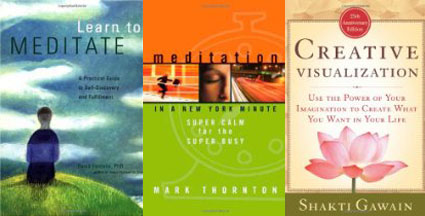
Find some of my favorite books on meditation here.
Creativity – John Cleese
January 22, 2011 | 2 Comments
John Cleese On Creativity
John Cleese Make Something, Even Mistakes
John Cleese On How To Put Your Mind To Work
John Cleese The Brain Explained
Find more Creativity resources here.
22 Ways To Find Inspiration
January 21, 2011 | 1 Comment
How do I find inspiration ?
Let me count the ways!
1 Walk in nature
2 Visit a new place
3 Plan a future trip
4 Read
5 Listen to music
6 Watch movies
7 Look at artwork
8 Review my finished images
9 Review my unfinished images
10 Make new images spontaneously
11 List new creative things to try
12 Try something new creatively
13 Sketch ideas
14 Free associate
15 Brainstorm
16 Meditate
17 Yoga
18 Massage
19 Astrology, Numerlogy, and Tarot
20 Daydream
21 Dream
22 Play like / with a child
If one of these doesn’t work, I know I’m wound way too tight.
Then I just need to relax … and try one or more of these again later.
Find more resources on Creativity here.
Learn more in my digital photography workshops.
keep looking »Subscribe
Get the RSS Feed-
- Adventures
- Alumni
- Antarctica
- Antarctica 2009
- Apps
- Audio
- Books
- Business
- Calendar
- Canon Cameras
- Causes
- Cell Phone
- climate change
- Collected
- Color
- Composition
- Contests
- Conversations
- Creativity
- Destination
- Disclosure
- Discount
- Drawing
- DVDs
- eBooks
- Editing
- Environment
- Epson Print Academy
- Equipment
- Event
- Exercises
- Exhibit
- Experiment
- Exposure
- Green Actions
- Greenland
- Guest Blog
- Huffington Post
- iceland
- Images
- Influences
- Inspiration
- Interviewed
- iPad
- iPhone
- Lecture
- Lighting
- Lightroom
- Magazine
- Map
- Masterworks In My Collection
- Media
- Meditation
- Multimedia
- Namibia
- News
- Optical Illusions
- Packing
- People
- Photographer's Favorite Quotes
- Photographers
- Photographers – Q&A
- Photographers On Photography
- Photographers Video Conversation
- photography
- Photoshop
- Postcards
- Printing
- Published
- Q&A
- Quotes
- R/Evolution
- Radio
- Reading
- Requests
- Review
- Reviewing
- Science
- Screensaver
- Sculpture
- Seminar
- Sharpening
- Slideshow
- Social Causes
- Social Networks
- Software
- Special Guest
- Special Offer
- Statements
- Storytelling
- Technique
- Technology
- The Making Of The Print
- The Stories Behind The Images
- Travel
- Uncategorized
- Video
- Video – Artists
- Video – Creativity
- Video – Lightroom
- Video – Photographers
- Video – Photography
- Video – Photoshop
- Video – Quick Tips
- Website
- Winners Of The Day
- Workshop Giveaways
- Workshops
- Writing
- X-Rite i1Photo Pro
Archives
-
- May 2013
- April 2013
- March 2013
- February 2013
- January 2013
- December 2012
- November 2012
- October 2012
- September 2012
- August 2012
- July 2012
- June 2012
- May 2012
- April 2012
- March 2012
- February 2012
- January 2012
- December 2011
- November 2011
- October 2011
- September 2011
- August 2011
- July 2011
- June 2011
- May 2011
- April 2011
- March 2011
- February 2011
- January 2011
- December 2010
- November 2010
- October 2010
- September 2010
- August 2010
- July 2010
- June 2010
- May 2010
- April 2010
- March 2010
- February 2010
- January 2010
- December 2009
- November 2009
- October 2009
- September 2009
- August 2009
- July 2009
- June 2009
- May 2009
- April 2009
- March 2009
- February 2009
- January 2009
- December 2008
- November 2008
- October 2008
- September 2008
- August 2008
- July 2008
- June 2008
- May 2008
- April 2008
- March 2008
- February 2008
- December 2007
- September 2007
- April 2007
- March 2007
- February 2007
- December 2006
- November 2006
- October 2006
- August 2006
Categories
Blogroll
Topics & Friends
WP Cumulus Flash tag cloud by Roy Tanck requires Flash Player 9 or better.