Print Borders Aren’t Equal
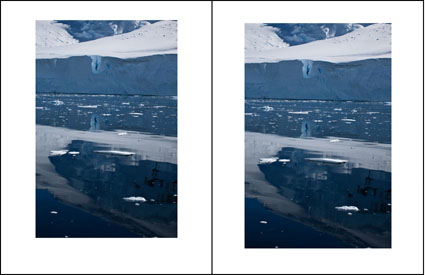
Problem
The borders on my print aren’t equal.
Solution
Create a Custom Paper Size with equal borders.
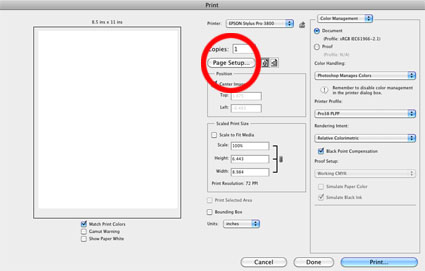
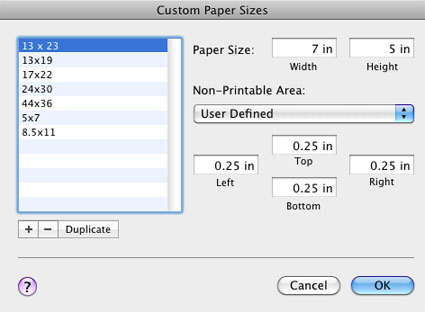
Read more Printing Tips.
Learn more in my Fine Art Digital Printing Workshops.


Problem
The borders on my print aren’t equal.
Solution
Create a Custom Paper Size with equal borders.
Read more Printing Tips.
Learn more in my Fine Art Digital Printing Workshops.
Problem
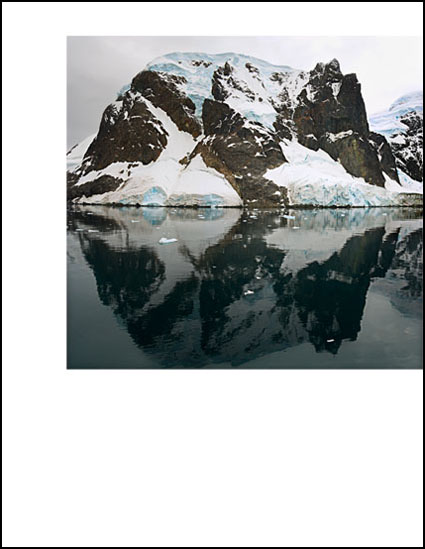
My image printed off the edge of the paper.
Solution
Reset the Page Setup. Check paper size and orientation and borders.
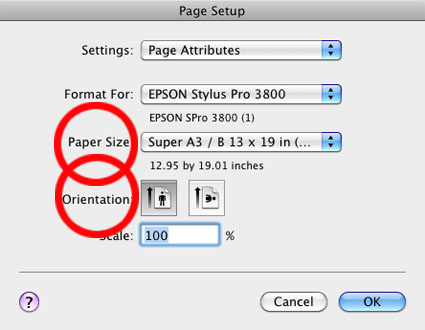
If you’re using an unusual sheet size create a Custom Paper Size.
Read more Printing Tips.
Learn more in my Fine Art Digital Printing Workshops.
Problem
I cleaned the heads but they’re still clogged.
Solution Clean them again. The fourth time in a row initiates a power cleaning cycle.
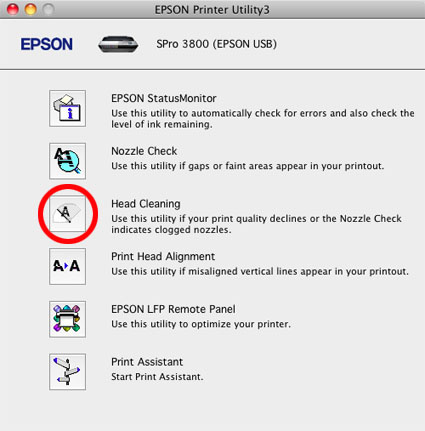
New Epson printers have anti-clogging coatings on the nozzles and initiate self-clean cycles automatically.
When power cleaning cycles don’t work you can humidify the heads (rest them no wet sponge for a while).
You’ll need to perform nozzle checks more often if you’re in a very dry environment (air conditioning dries) or you don’t use a printer for extended periods of time.
Read more Printing Tips.
Learn more in my Fine Art Digital Printing Workshops.

Problem
I’ve got white micro-banding in my print(s).
Solution
Check for nozzle clogs with the Printer Utility.
Realign the print heads with the Printer Utilities.
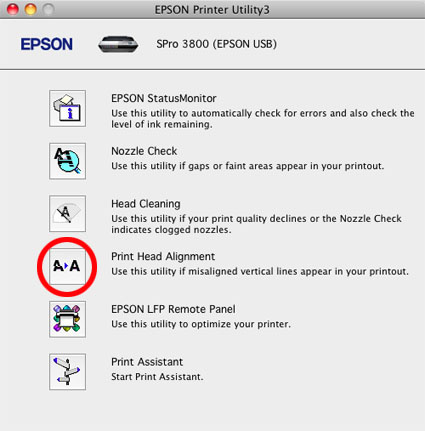
If the problem persists, adjust print speed slower with Advanced Media Control’s Paper Feed Adjustment.
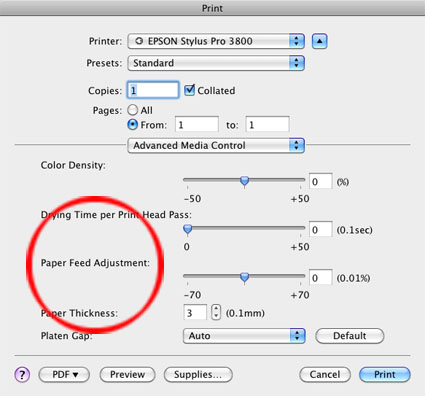
In rare cases, the media feed speed can’t be adjusted with software adequately and that means it’s time to send a printer in for servicing.
Read more Printing Tips.
Learn more in my Fine Art Digital Printing Workshops.
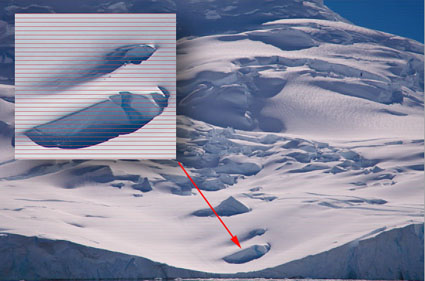
Problem
I’ve got colored micro-banding in my print(s).
Solution
Unclog the nozzles with the Printer Utility.
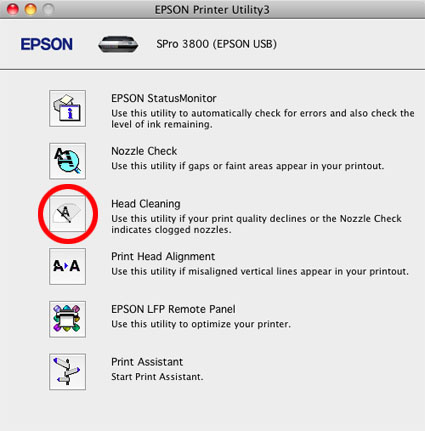
Colored micro-banding means one of the inkheads isn’t firing. It’s not always uniform.
Read more Printing Tips.
Learn more in my Fine Art Digital Printing Workshops.

Problem
I’ve got dark micro-banding in my print(s).
Solution
Realign the print heads with the Printer Utility. If printing on High Speed, try printing with High Speed off.
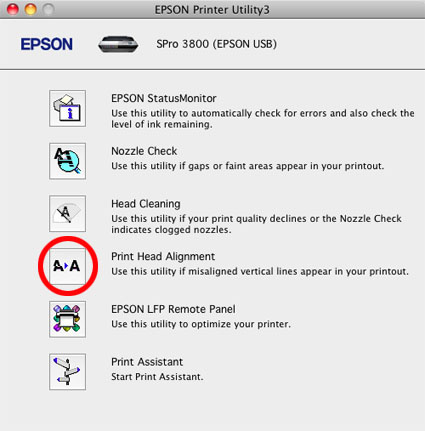
If the problem persists, adjust print speed with Advanced Media Control’s Paper Feed Adjustment.
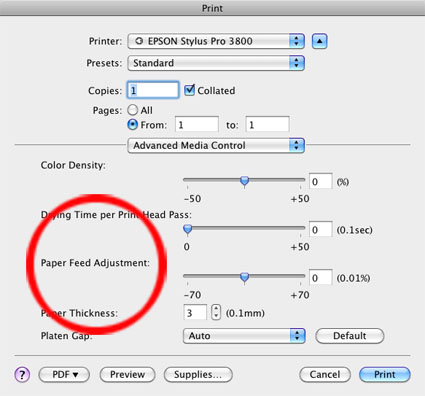
Dark micro-banding happens when lines of ink overlap each other. Imprecise head alignment is the most common problem. Less frequently, the speed media is feed through the printer is slightly off. In rare cases, the media feed speed can’t be adjusted with software adequately and that means it’s time to send a printer in for servicing.
Read more Printing Tips.
Learn more in my Fine Art Digital Printing Workshops.

Problem
I’ve got broad linear banding in my print(s).
Solution
Make sure your data transfer from computer to printer is fast and uninterrupted.
Do use a fast connection like USB2 or Ethernet.
Don’t use a cord that too long – less than 12 feet.
Don’t tie up your computer up with tasks other than printing.
As this is a data transfer issue, it affects larger prints (more data) more than smaller prints (less data).
Don’t confuse this type of banding with micro-banding (small thin lines) or non-linear banding (in the file).
Read more Printing Tips.
Learn more in my Fine Art Digital Printing Workshops.
Problem
I sent a file to the printer but the printer won’t start.
Solution
Delete and reload the printer driver.
On a Mac, go to System Preferences, click Print&Fax, highlight the printer, check the – button, then check the +, click on the icon for your printer and check Add.
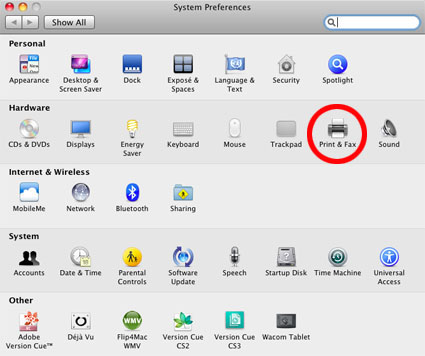
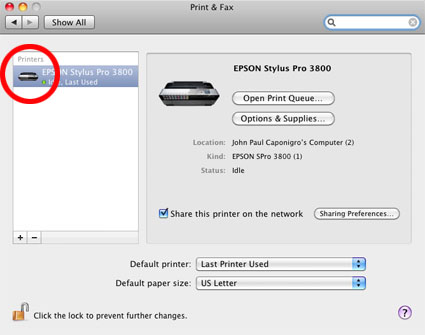
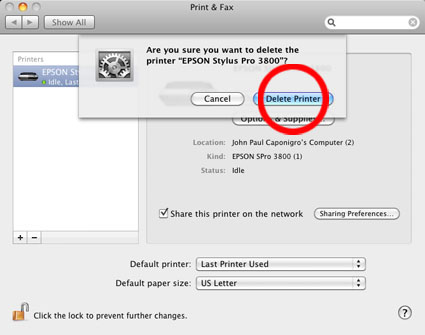
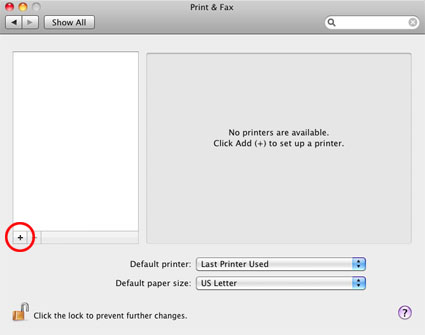
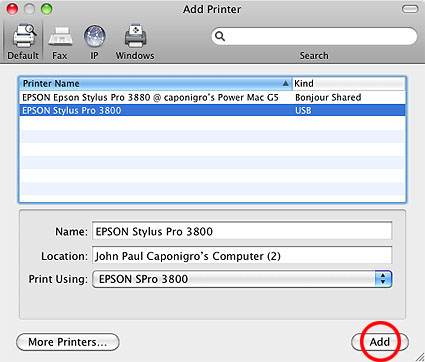
Remember to have your printer plugged in and turned on when you do this. Don’t confuse this with going to the manufacturer’s website and downloading the latest driver.
Communication errors between the computer and printer happen frequently, most often when ink or paper type is changed, stalling the print queue. Deleting and reloading the printer driver is a simple solution that fixes it immediately.
Read more Printing Tips.
Learn more in my Fine Art Digital Printing Workshops.
Problem
I can’t find my printer utilities.
Solution
On a Mac, go to System Preferences, click on Print&Fax, double click on the icon for your printer, click Printer Setup, click Utility, Click Open Printer Utility.
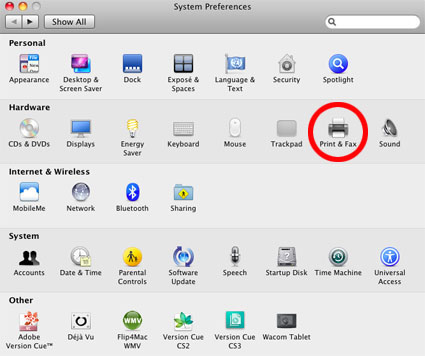
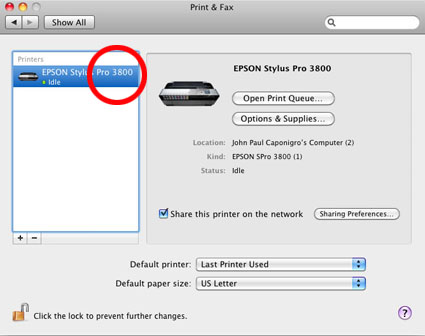
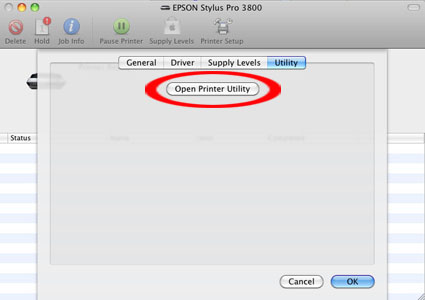
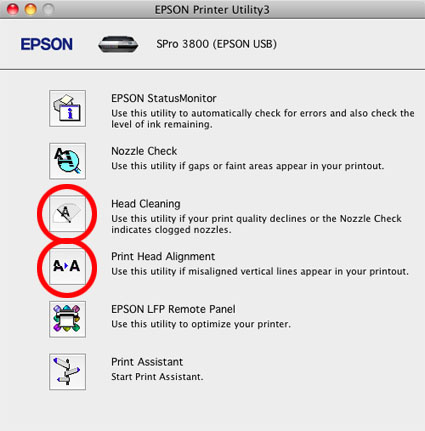
The most common uses for the printer Utility are to remove nozzle clogs and to align print heads. New Epson printer models are self-cleaning and self-aligning so you won’t have to do this often. But when the automated systems fall short, knowing where this utility is can be helpful.
Read more Printing Tips.
Learn more in my Fine Art Digital Printing Workshops.

–
–
–
–
–
–
I discuss the current state of the art in digital printing in my studio/gallery and why I use the latest Epson printers.
Read more on Printing in my free Lessons.
View more in my R/Evolution DVD series.
Learn more in my Fine Art Digital Printing Workshops.