The Art of Proofing

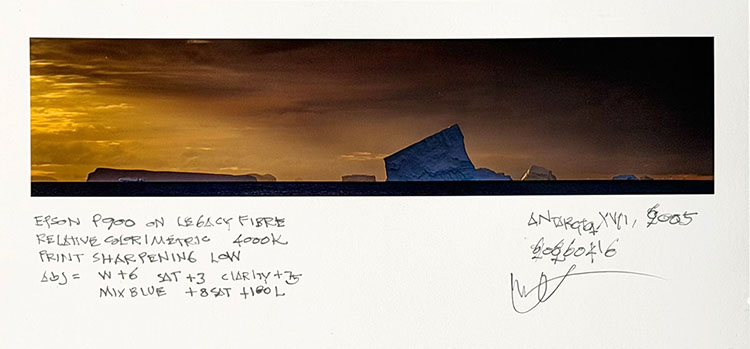
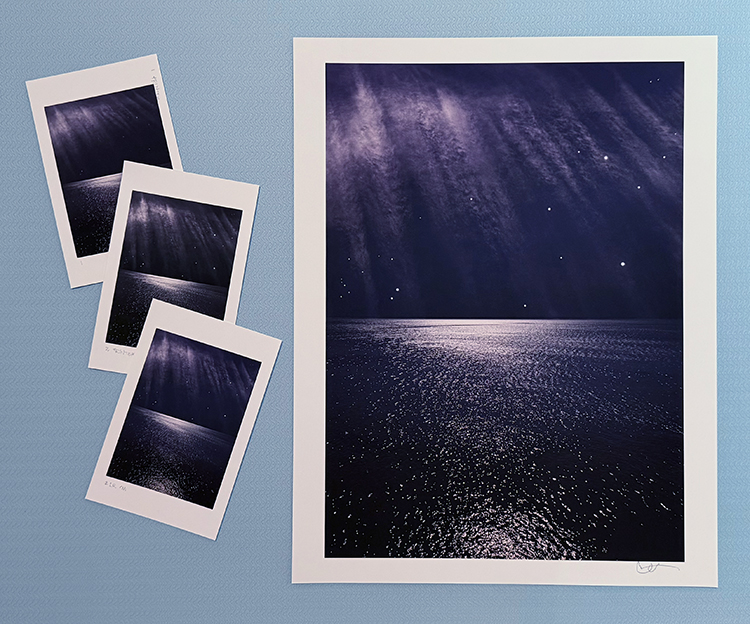
Proofed and printed with an Epson 900 Ultrachrome Ink on Legacy Fibre paper.

Proofing. Some think it’s a lost art. It’s not. Some aren’t aware that they’re doing it. You probably are. If you’re not doing it, it’s highly likely that you can make even better prints than you already are. If you are doing it, you’ll probably find that structuring and refining your proofing process will have many beneficial effects on the print quality you achieve.

What’s proofing? Evaluating an image printed on a particular substrate, making adjustments to the file, reprinting, reevaluating the image on a subsequent print, and repeating until optimum results are achieved.

Proofing is not a Substitute for Color Management

The fact that we still make proofs doesn’t mean color management doesn’t work. It’s amazing it works as well as it does. And, it’s getting better all the time. There are limits. It helps to know the limits. Proofing is not a substitute for good color management practices. Good color management will save you time, materials, money, and improve print quality. There are certain things you cannot solve with proofing if color management is poor. Good color management will get you the best first proof possible. Good color management policies will allow you to trade in subtleties when proofing. Properly implemented, color management will get you 90% of the way there.  To get the last 10%, you need to proof. And, it’s the last 10% that separates good prints from great prints.

The Limits of Softproofing

Softproofing. Simulating the appearance of an image printed on a specific substrate, with a specific printer, driver, output profile, and rendering intent – before it’s printed (View: Proof Setup: Custom). For some, it’s the missing component of color management. Others who have mastered softproofing may have been misled into thinking that a perfect match is attainable. If close is close enough, softproofing is all you’ll need. When it comes to making the very finest prints, some proofing is required, but it has limitations.

Softproofing’s preview of the difference between transmissive and reflective color spaces is not absolutely precise. Even with today’s technological advances, we have a limited ability to display the profound translation between glass or plastic emitting light (transmissive) and paper absorbing light (reflective). While you can match the two closely enough to make very sophisticated predictions about inevitable changes to color, some differences between the two persist, chiefly in brightness (the white and black of the paper and ink).

Softproofing can’t simulate different viewing light temperatures. Profiles are light temperature-specific. With rare exception (ImagePrint RIP), output profiles are created for a standard viewing light of 5000K. Some compensation will be required if prints are to be viewed under a different light temperature. A majority of prints are viewed under very different light temperatures, typically warmer.

Softproofing can’t display the differences between color management routes. Use the same profile using two different color management methods, and you will get slightly different results. Test this by comparing proofs made using Let Printer Determine Colors and proofs made using Let Photoshop Determine Colors.

Softproofing can’t display inaccuracies in profiles. If a profile is inaccurate, the softproof will be inaccurate too. While some profiles are vastly superior to others, I’ve never seen a perfect profile. Even with the finest profiles, you will need to compensate for small inaccuracies by proofing.

Softproofing can’t fully represent the impact of scale. Monitors have one size. Prints can be made in sizes much smaller or much larger than the monitor used to view a digital image. There are optical effects linked to scale – larger images appear to be lighter and contain less contrast, while smaller prints appear to be darker and contain more contrast.

Softproofing can’t precisely preview detail and sharpness. A monitor’s resolution rarely matches a print’s resolution, so distortions in scale are required in order to assess detail, sharpness, contours, and noise. Softproofing also can’t preview the softening effects of dot gain.

Softproofing can’t show the sensual characteristics of the substrate surface. A monitor has only one surface, but you can print on a marvelous range of substrates from super glossy film to fibrous watercolor paper. Each substrate adds a unique aesthetic dimension to the final print.

In the end, in order to achieve the best quality possible, it’s highly likely that you will want to adjust an image after you see it printed out or proofed. You may need to do this multiple times to achieve optimum results. Here are twelve things that will improve your proofing.

Read More

How To Avoid 6 Printing Mistakes That’ll Make You Want To Curse

Having taught over a thousand people for thirty years, I’ve seen and done it all. Here are the most common mistakes that people encounter when printing their images that you can avoid by simply looking at your files more closely and handling your paper more carefully.

Files

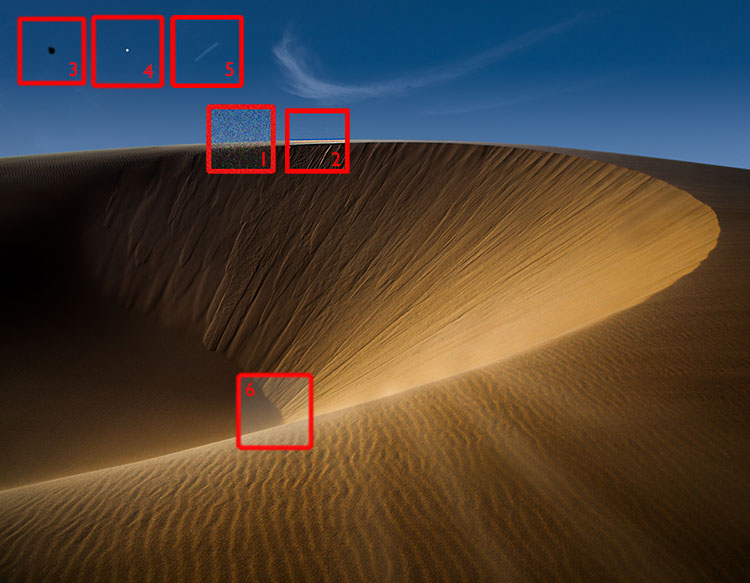
You won’t see this stuff if you’re zoomed out and looking at the whole image. Zoom in to 100% screen magnification. You’ll also miss things if you move around the image erratically. Move through each image one screen at a time and make a systematic quadrant-by-quadrant sweep.

1 – Noise

Too much noise can be distracting, especially color noise, unless you’re an impressionist. A little texture is good and makes images look sharper, so don’t overdo noise reduction, or your subjects will look like they’re made of plastic. Noise is most visible in smooth areas, like skies.

In some cases, you’ll want to reduce noise selectively with layers and masks in Photoshop, for instance, when you want to reduce noise in a sky more aggressively than in a foreground.

2 – Halos

One of the key things you want to watch out for when sharpening is producing halos. Most often seen along high-contrast contours, like horizons, halos are distracting and can make a straight photograph look like a composite. Though it can be done, retouching them is a bitch. So don’t produce them and use lower sharpening settings. If you need more sharpening in areas without contours (and the Texture slider won’t cut it), use layers and masks in Photoshop to sharpen selectively.

3 – Dust In Your File

Those dagnab little dust bunnies. They’re so easy to miss when you’re zoomed out and so easy to see when you’ve made a big print. Even if you keep your camera sensor clean, zoom in and check for them. If you find them, retouch them permanently.

Media

When it comes to media, the mantra is handle with care. This extra consideration will save you time, materials, and money. And it will earn the respect of your viewers. (God forbid that you don’t notice these things until your prints are exhibited.)

4 – Dust On Your Paper

If dust and lint fibers is on your paper while you’re printing, it can act as a resist and later fall off, leaving areas without ink. You can prevent this. First, store your paper in a sealed plastic bag or box. Two, look at your paper in the light and check for dust and lint, and if you see it, blow it off or use a soft brush to wipe it off. 

5 – Scuffing

Different than scratching, which gouges the paper surface, scuffing pushes down the fiber of paper and burnishes the particles in the ink, leaving a faint mark that can be seen as a difference in sheen on the surface of the print. Handle your paper carefully at all times, and cover it with a protective sheet when you’re not handling it.

6 – Wrong Side Of The Paper

If you print on the wrong side of the paper, blacks will be weak, colors will fade, and detail will be soft. How do you tell which side is the printable side? One, it’s the side your wet lips will stick to. Two, the printable side will usually feel smoother to the touch. Three, you can feel a slight lip on the edges of the back side where a cutting blade has pushed through the paper.

Pay your files and materials these extra considerations, and you’ll not only make better prints, you’ll also save you time, materials, and money.


Find more printing resources here. 

Learn more in my digital printing workshops.

Save Time, Money, Resources With These Printing Checklists

Have you ever had this feeling?

You’re looking at a gorgeous print of one of your photographs … then you notice a small detail that needs to be fixed, and you know you’re going to have to reprint it. More time, more paper, more ink. Frustration. It’s so obvious when you see it now! Why didn’t you see it before? Save time, money, resources, and increase your productivity and enjoyment at the same time.

Use these checklists to eliminate this problem.


Before you print check your … 

File

level horizon

precise crop

shadow detail

highlight detail                   especially at the edges

midtone contrast

saturation                             overall and specific hues

white balance                     casts are best seen in neutrals, flesh tones, and memory colors

noise reduced                      avoid blurring and artificial smoothing effects

sharpened                            avoid producing halos

imprecise masking            edges misaligned or haloed

imprecise retouching       blurry or misaligned or repeating patterns

dust                                           check at 100% screen magnification

softproof                                make output specific tweaks based on printer profile used

resampling                            if resolution is below 240 ppi or above 720 ppi

output sharpening             compensate for image softening due to dot gain


You can ensure you take all these steps with a consistent workflow.

Explore these color resources for more detail.

Explore these sharpening resources for more detail.


While you print check your …

Printer

orientation                             portrait (vertical) or landscape (horizontal)

page setup                             paper size and margins

color management             Adobe or Printer (for B&W)

printing profile

media setting                        precise or nearest paper type

ink                                              MK matte or PK photo black

printer resolution                1440 matte or 2880 photo


Save these settings as a Preset so you can use them again with a single click.

Explore these printing resources for more detail.


After you print check your …

Print

white spots                            dust on paper before printing

scuffing                                   handle paper with care before and after printing

banding                                   align heads or reduce print speed or make sure data transfer’s fast

microbanding                       check for nozzle clogs or print speed

local color casts                    areas check for nozzle clogs

colors faded                           wrong side of paper


Make sure you view prints in enough light with the right color temperature.

Explore these printing tips for more detail.


Learn more in my digital printing workshops.

Free World Class Training Online – The Photoshop Creativity Virtual Summit – Apr 14 – 17

.
.
4 Days
19 Speakers
36 Classes
.
Dave Cross is giving his wildly popular Photoshop Virtual Summits an even more creative twist this year. Join us for an amazing 4 days of creative training in 36 classes from 19 world-class Photoshop experts and artists.
.
I’m presenting two webinars.
.
Apr 17
1 pm EST
How To Find Inspiration From Your Influences
+
Apr 20
8 am EST
Realize Your Vision With The Fine Art Of Digital Printing
.

Free Webinar Nov 22 – The Wonderful Things Printing Can Do For You & Your Images

Join me for a free webinar

Tuesday Nov 22 at 1 EST

Here’s a link to the replay!

The Wonderful Things Printing Can Do For You & Your Images

What can prints do for you and your images? Let me count the ways!

Learn what to look for in good prints and how to make yours great.

Find out about the many ways you can use prints to improve your art and its success.

Get my free The Digital Printing Quick Start Guide now.

Hosted by Calibrite in the B&H Event Space.

Click the link below to join the webinar.
https://us06web.zoom.us/j/82967781997?pwd=N3BhVWpoWkIwY2ljUndKWWRwWHlqZz09
Passcode: 887027

What You Need To Know To Master Black & White Photography

.
In this video, I share my unique insights into what’s special about black-and-white images. I show ways to visualize black-and-white possibilities and showcase 5 classic black-and-white styles. Along the way, I discuss the vital steps of making black-and-white images; color management, color conversions, tonal adjustment, and printing.
.

12 Things To Look For In Great Prints & Common Problems To Avoid


Most people evaluate a combination of elements to assess print quality. Find out what they are, how to get them, and how to avoid common mistakes in this new video.

7 Things To Look For In Great Prints & Great Artists Who Make Exceptions

Get The Digital Printing Quick Start Guide here.

7 Things To Look For In Great Prints & Great Artists Who Make Exceptions

Classic prints exhibit sharp focus, extended depth of field, high dynamic range, pronounced contrast, and idealized color.

Reduced dynamic range, often with greatly reduced saturation, sometimes with reduced sharpness, occasionally with vignetting, and infrequently material process artifacts, printed on matte surfaces at small scales classically connotes historic photographic processes. 


Half of the battle is knowing how to do something. The other half is knowing what to do. So when it comes to making fine photographic prints, it helps to know what to look for.  A combination of elements (and their relationships with one another) is often evaluated when assessing print quality. When you depart from these standards you call attention to those elements, for better (intentional) or worse (accidental). Stack up too many exceptions and technique becomes a deal-breaker. Stack up enough well-crafted elements and technique becomes a deal maker. Speaking very broadly, you could say the goal is to clearly reproduce detail and minimize distractions from it. Let me get more specific.

1    Focussed

The default stance of a photograph is for everything to be in focus; critical focus is achieved (focal plane placed on the most important subject), depth of field is deep (aperture stopped down), motion blur is non-existent (high shutter speed). Blur is seen as an unfortunate product of poor tools and/or technique.

Exceptions

When exceptions are made, to work they need to appear obvious, deliberate, and be repeated in more than one image. Motion blur (from the subject or the camera) may be used to enhance gesture. (See Ernst Haas or Alexey Titarenko.) Selective focus may be used to direct attention away from less important elements toward more important elements. (See Keith Carter.) Soft focus may be used to reduce distracting detail and/or create impressionistic effects. (See Julia Margaret Cameron or Edward Steichen.)

2    Sharp

Sharpening (analog and digital) can be used to enhance focus by making lines and textures more pronounced. Push sharpening too far and an image begins to look graphic rather than photographic. Contours (bright halos and dark lines) may be accentuated unnaturally. Noise may become apparent. Texture may become overly crisp or even brittle. 

Exceptions 

So how crisp is too crip? That’s a matter of style, which follows intention. There’s a great gulf between Richard Avedon’s (extremely sharp) and Joyce Tenneson’s (soft) photographs. Both use more or less than standard sharpness expressively.

3    Low Noise

Noise is typically minimized. It can be reduced during capture (Use lower ISOs.), editing (Avoid aggressive contrast and/or sharpening.), or output (Use fine printer resolution and ink limits appropriate for the substrate used.).

Different types of images will present different limits. Noise becomes more apparent in smooth subjects and is often hidden in highly textured subjects. You may even elect to reduce noise during post-processing more in smooth areas than textured areas. A lot of noise becomes distracting. A little noise isn’t bad; it often makes an image appear sharper.

Exceptions 

Photographers like Sheila Metzner and (early) Michael Kenna have used extreme noise to emphasize medium and create compelling atmospheres.

4    Gradation

Gradation, or the ability to reproduce smooth tonal transitions continuously without posterization, is prized. Harsh tonal transitions quickly make an image appear graphic and sometimes even abstract, reducing the illusion of volume /space and calling attention to contours. 

Exceptions 

Photographers who have been successful with high contrast photography, like Anton Corbijn and Mario Giacomelli, take it to an extreme.


Insights Members can login to read the full article.
Email:
or Sign up

6 Benefits Of Making Prints Of Your Photographs

.
In this video, I count the ways living with prints brings new life to you and your images. Making prints of your photographs benefits you and your images in many ways including improving your vision, making more high-quality images, sharing your work effectively, and much more.
.